

LESSON 14 · Your workspace
Title page & added pages
Give the reader a cover with the writer’s name and contact details. For a production copy, you can add a company logo to the cover and a dedication or movie poster before the first scene.
2:16 · 1080p · Captions available · Playback starts only when you choose Play.
Fill in the title page
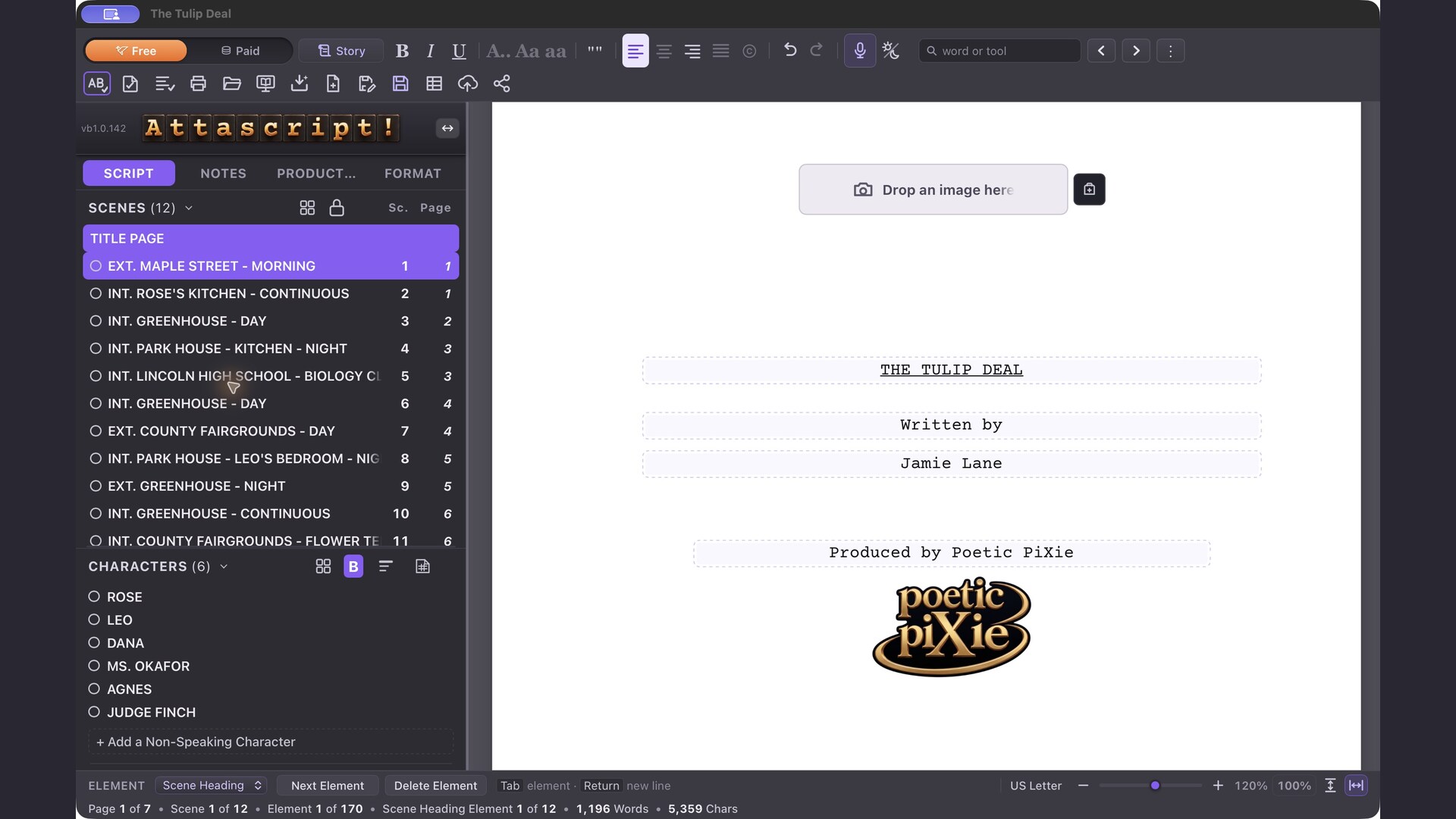
In the Scenes panel, choose Title Page. Choose View › Fit to Width to edit the title, byline and writer’s name. The credit field below the author can name a source or a producer. The Tulip Deal uses “Produced by Poetic PiXie” here. Add contact details at the lower left and the draft or date at the lower right. To add a copyright line, click where it belongs and use the copyright control.
Choose Fit to Length (Mac ⌘1, Windows Ctrl+1) to check the whole cover. Return to Fit to Width (⌘2 or Ctrl+2) to keep editing.
Place and size a picture
A spec script usually needs only text on its cover. For a production copy of The Tulip Deal, we place the Poetic PiXie wordmark beneath “Produced by Poetic PiXie.” There’s also room for a picture above the title.
Click the empty “Drop an image here” area to open Add Image and choose a file. You can also drag a picture onto that area or use Paste Copied Image beside it. Click the picture to choose Small, Medium or Large. The same menu holds Replace Image and Remove image. The Japanese Kido cover offers both picture areas, with room for the upper picture in the wide top margin.
Add a page before the script
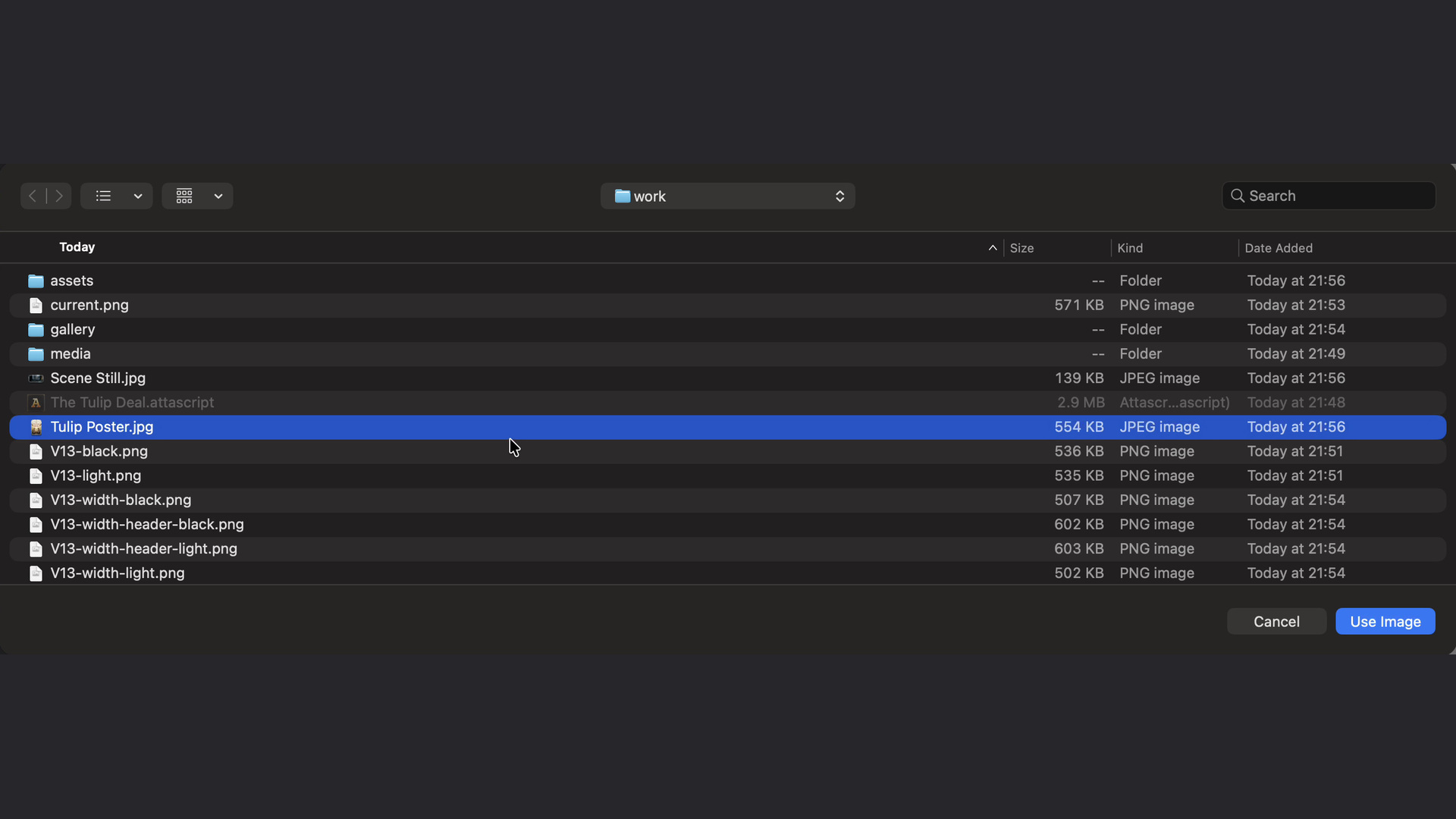
Choose Add Page at the bottom of the cover. Type “For every stubborn gardener.” Center the dedication and set it in italics. Place the cursor on the line beneath it and choose Add Image. Select Tulip Poster.jpg, then choose Use Image on the Mac. The poster appears beneath the dedication. Click the poster and choose Half width to give it room on the page. Full width is available too.
Use Add Page again for another sheet. These pages come before the screenplay and carry no page numbers. Select a scene in the sidebar when you’re ready to write.
Check the exported pages
Include the title page and its added pages when exporting to Word or PDF. You’ll see the credit, the pictures you placed and the writing on each added page. The faint prompts and empty picture areas guide you during editing. They disappear in print, PDF and Word.
When you import the Word file or PDF back into Attascript, the cover text returns to the title page and the dedication returns on its own page. Check the writer’s name and producer credit. If they appear together, move the producer line back below the author. Import does not recover the pictures. Keep the .attascript project to reopen it with its images in place.