

LESSON 13 · Your workspace
Style & Terminology
Use Style & Terminology in the Format tab to choose the wording of continued cues and put a title, reading-copy label or draft identifier on your screenplay pages.
2:17 · 1080p · Captions available · Playback starts only when you choose Play.
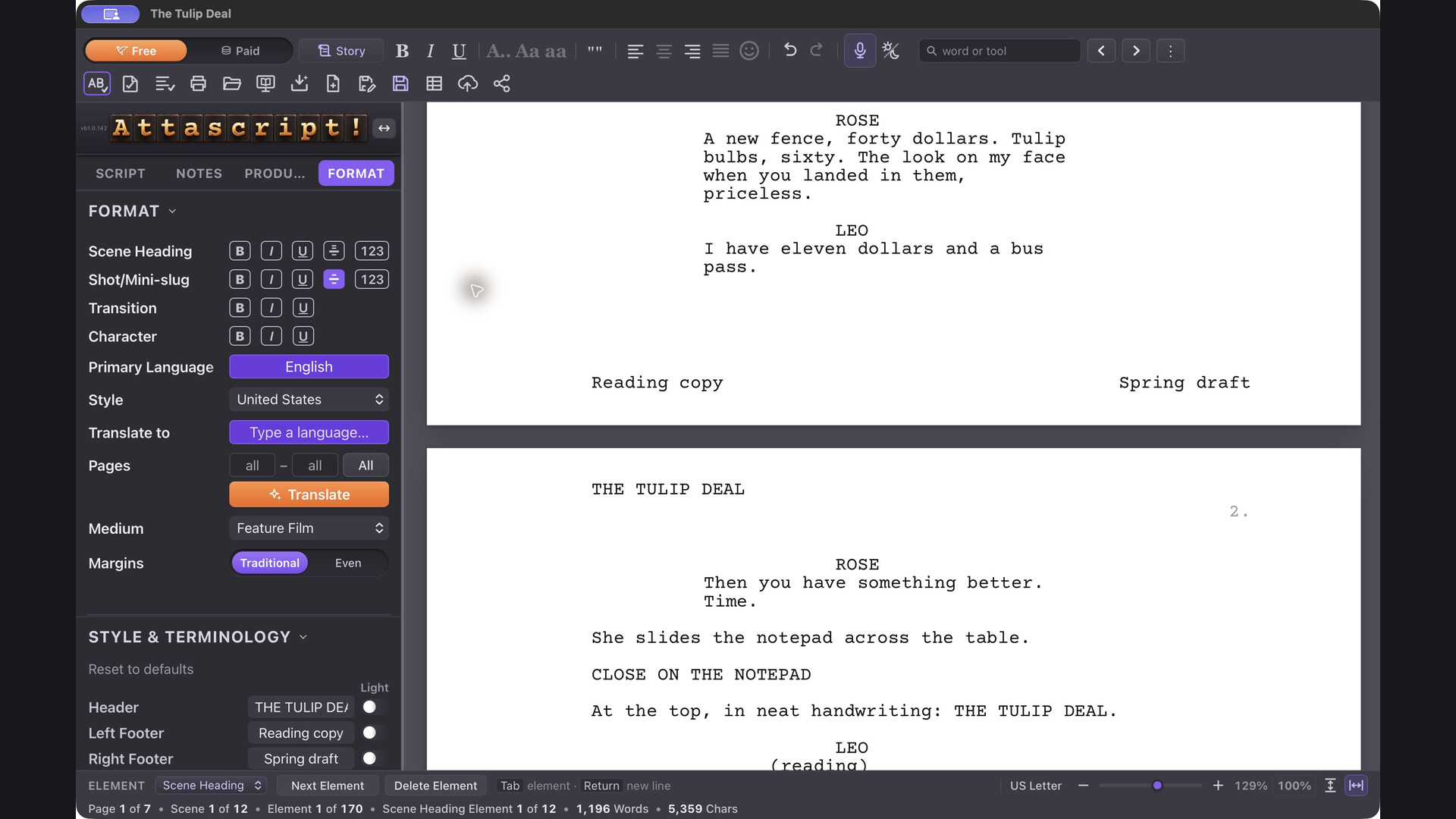
Choose which lines print light
Turn on Light beside Header. The title changes to 50% grey. Each field has its own switch, so you can keep a draft identifier black while the title prints grey. Turn on Light beside the two footers to match the example below.
Try it on your reading copy: keep both footers light, then turn off Light beside Header. Check the same page break again. The title should be black above the scene while both footers are grey below the preceding page.
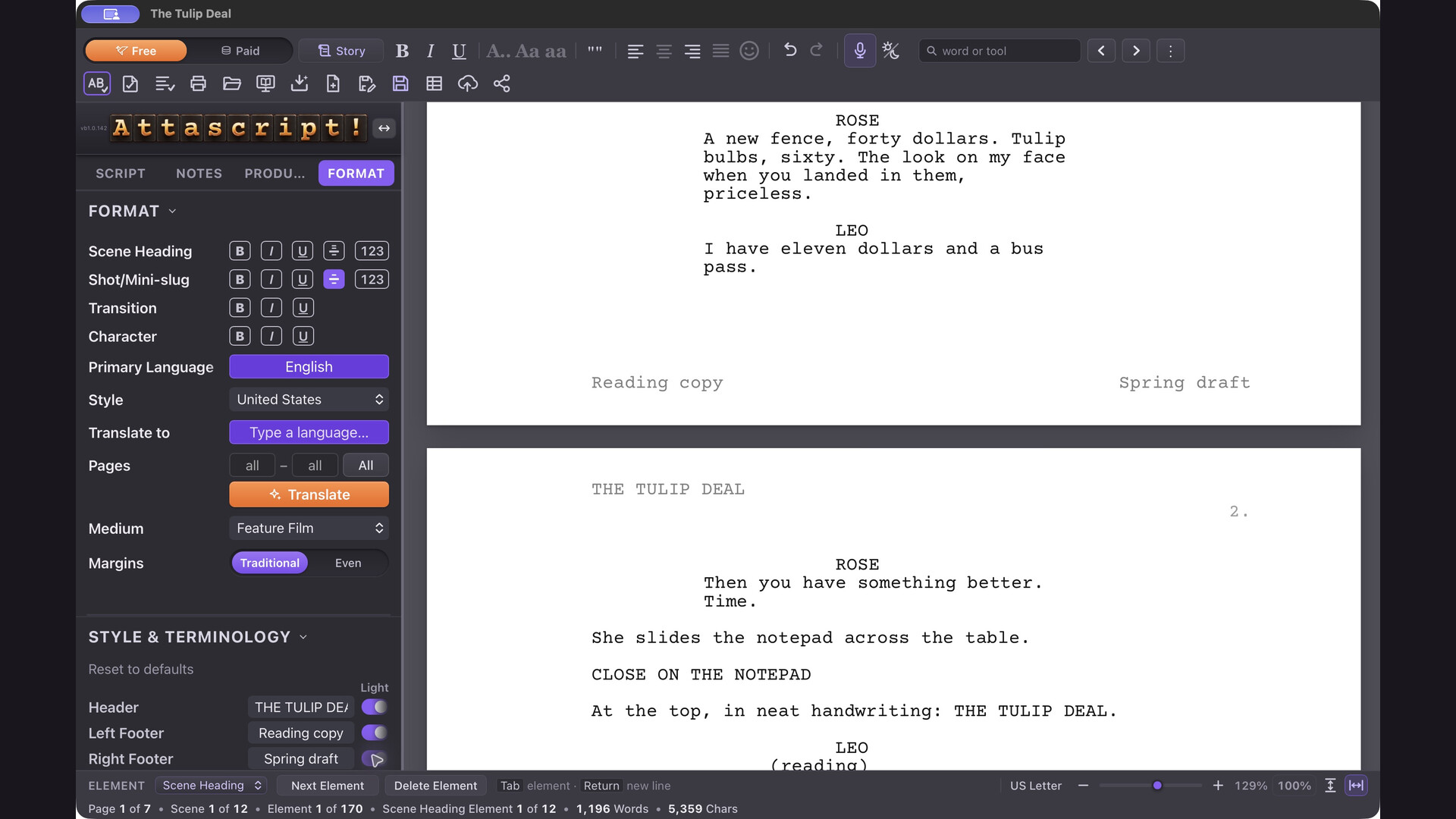
Continued dialogue and standard words
Same-Speaker Continued adds a continued cue when a character speaks again after Action. Turn it off or on to match the style you want.
Edit standard terms when your preferred wording differs from the default—for example, an off-camera abbreviation instead of off-screen. Reset to defaults restores the profile’s standard terms.
Production Draft
Enable Production Draft to keep scene numbers visible. While it is active, the scene-number control stays on; turn Production Draft off before hiding scene numbers again.
Scene Continued Bottom and Top control the markers where a scene crosses a page boundary. They are distinct from the More and Continued terms used when a speech crosses pages. Check the intended marker before editing its wording.