LESSON 35 · Work with your screenplay
Find a word, or a tool
Find a word in the screenplay or jump to a tool by describing what you want to do.
1:36 · 1080p · Captions available · Playback starts only when you choose Play.
Find text
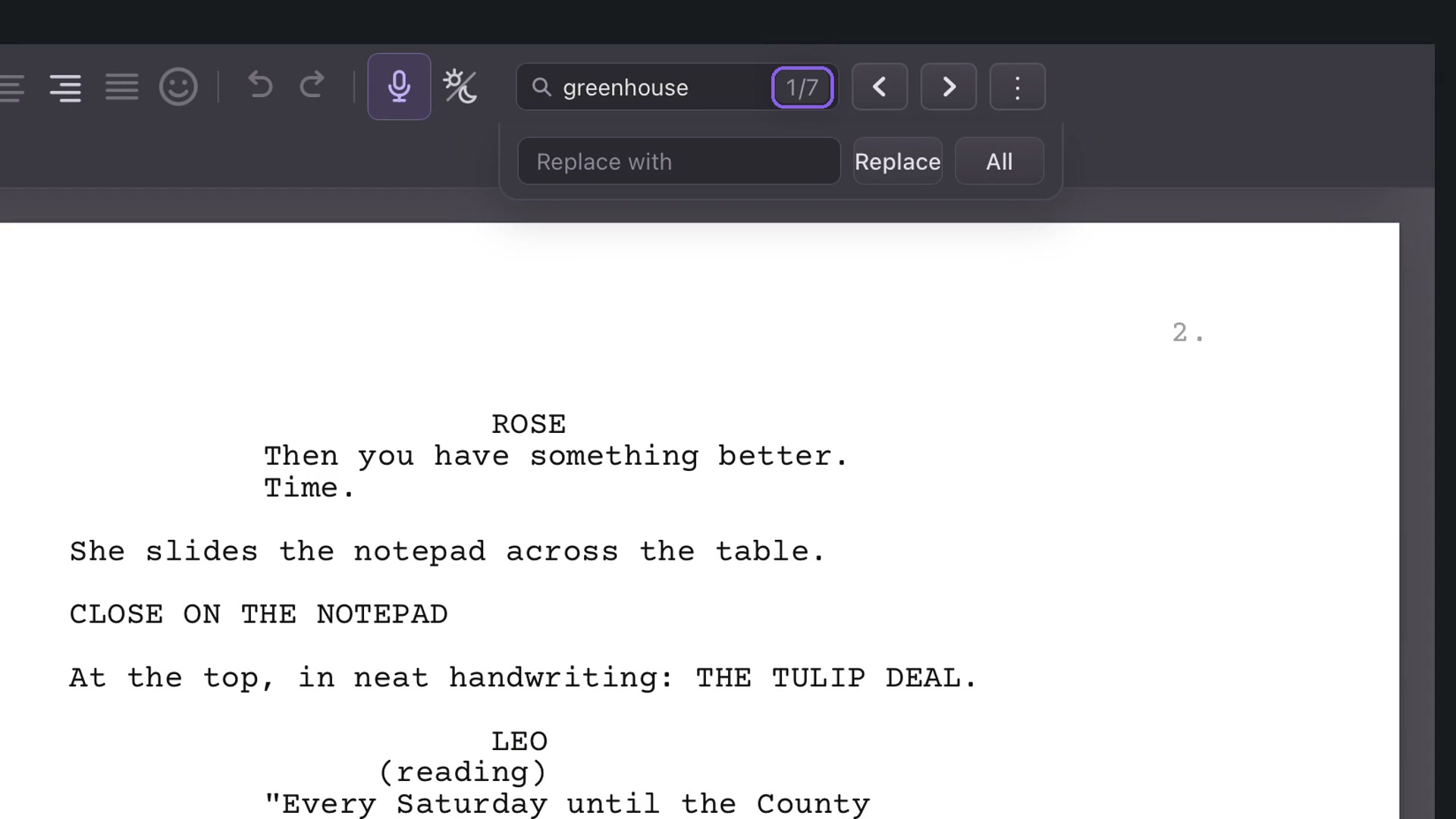
Press Command+F on Mac or Ctrl+F on Windows. Suppose you remember a greenhouse rule about phones. Search for greenhouse. Next and Previous take you through its seven matches in The Tulip Deal. Read the surrounding dialogue to find Leo’s “No phones in the greenhouse.”
Choose the search scope
The three-dot Search settings offers whole-word matching, case sensitivity and inclusion of notes. Keep Suggest tools enabled when you also want matching commands.
Whole-word matching is useful when a short search could otherwise occur inside longer words.
Replace carefully
Enter replacement text beneath the search. Replace changes one match; All changes all matches in the selected scope. Review your search settings and the intended wording before applying a broad replacement. You can search without replacing anything.
Find a control
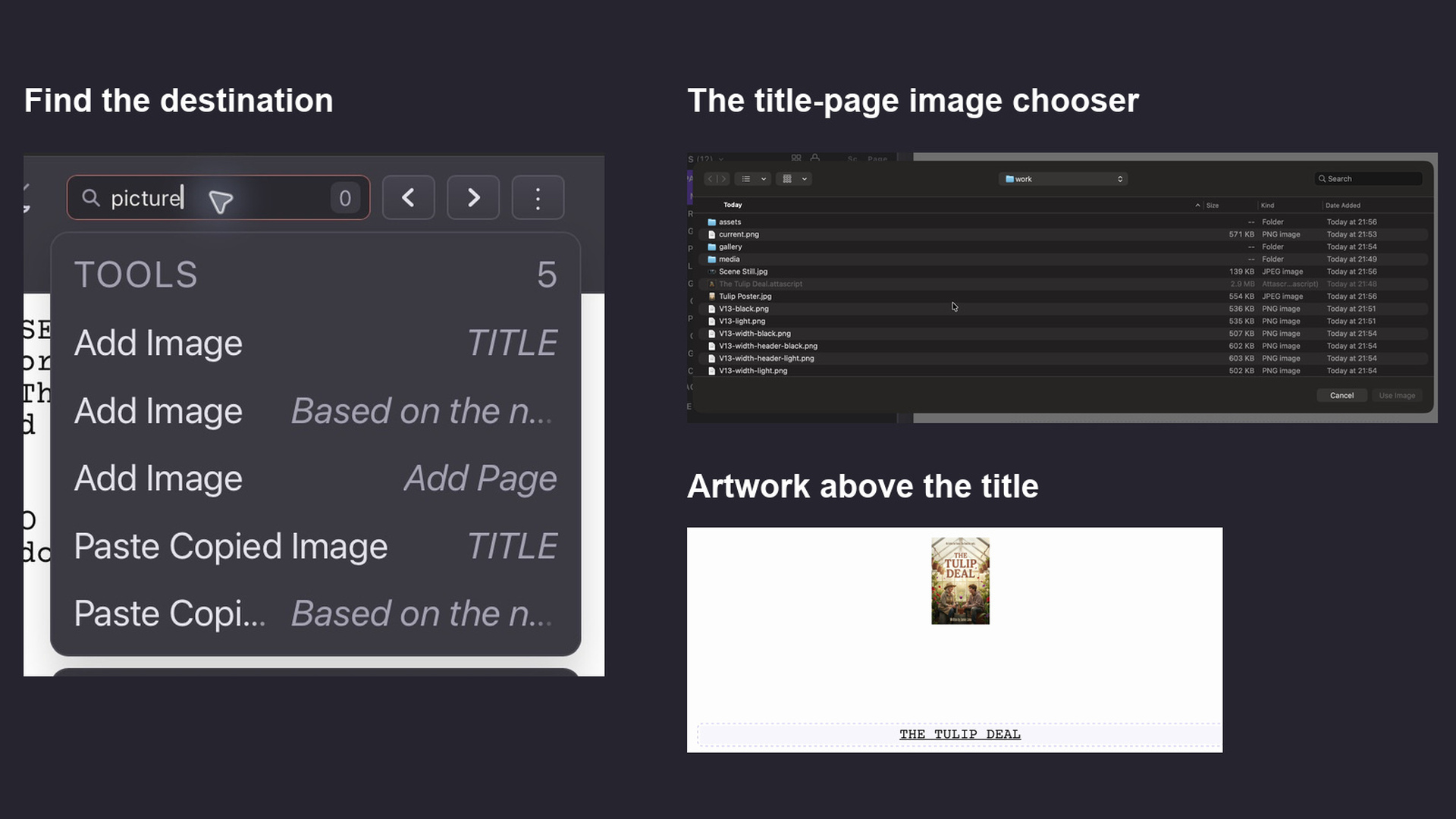
Leave Suggest tools on and type picture. Each result names its destination: the space above the title, the credit block, or an added page. Choose Add Image for the place you want. Attascript opens the title page and the file chooser. Searches for logo, author, contact info or add page also take you to title-page controls.
Type light to find separate switches for the header, left footer and right footer. Type television or feature film to find a choice inside the Medium picker. In a Turkish document, search for MinT and select it to apply that script style.
You can reach Story pages directly. Try synopsis, poster, logline, beat sheet, outline, analysis, casting, locations or pitch deck. Type adaptation to find Adapt.