


THE WRITER’S GUIDE · 03 / 14
Opening a Script
Return to a draft with its structure and working material intact.
In this chapter
Choose the right door
For a Attascript! project, use Choose File… on Welcome or File → Open…. The keyboard shortcut is ⌘/Ctrl + O. Open Recent is useful when you have been working on the same draft.
- Find your .attascript project or .fdx screenplay. Select it and choose Open.
- Check the title, first scene and Primary Language. Scroll to a later scene to make sure you opened the draft you intended.
- If this is an FDX exchange file, save an Attascript! working copy. Attascript! is designed to keep the project’s additional material and embedded images together.
- When switching between drafts, look at each window title. New Script and file-open commands can create independent windows; they do not require you to discard the draft already open.
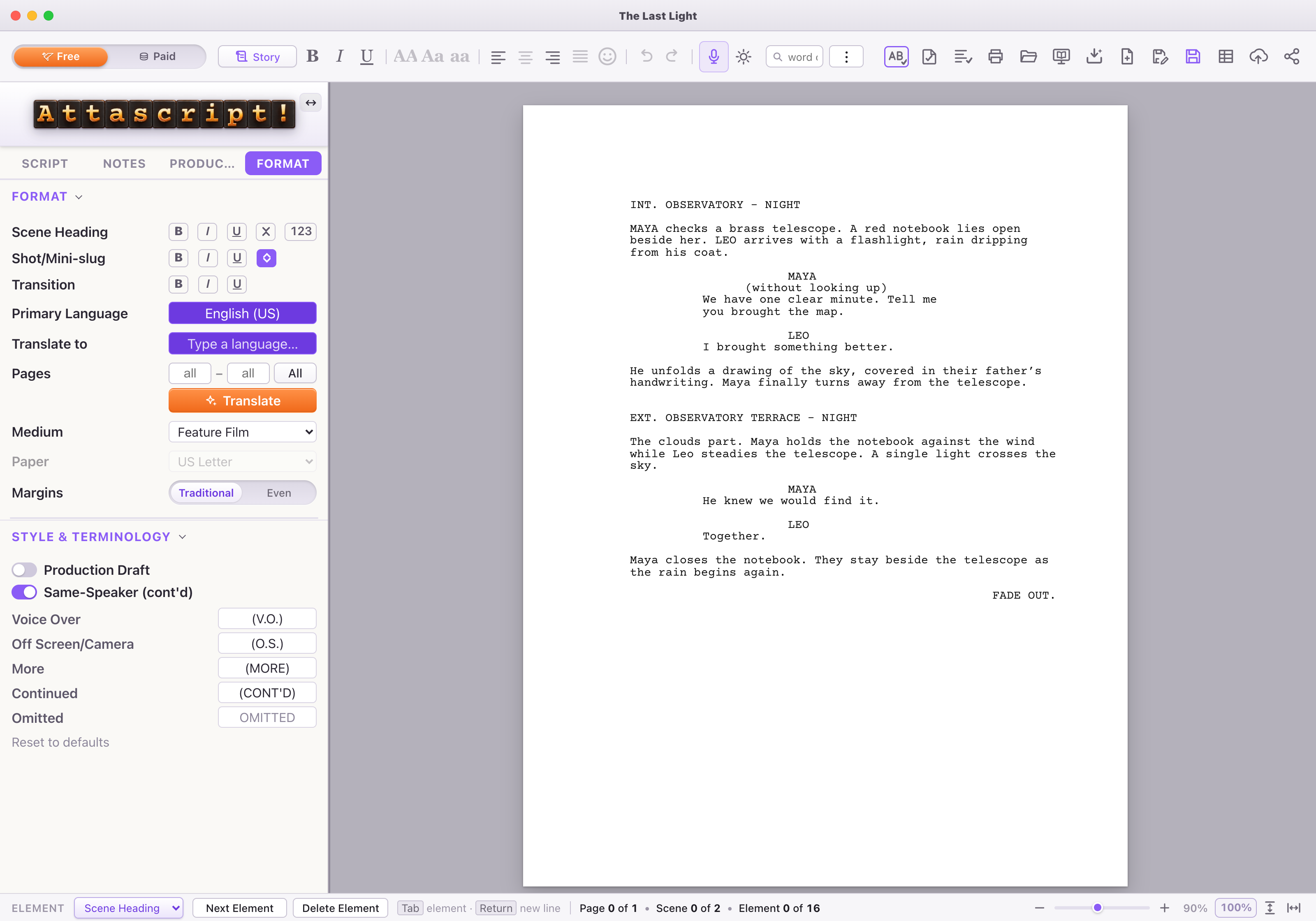
Opening versus importing
| File you have | Start here | What to check |
|---|---|---|
| Attascript! project | Open / Choose File | Script text, notes, Story material and saved images. |
| FDX screenplay | Open / Choose File | Element types, title information, language and page layout; save an Attascript! working copy. |
| PDF or Word document | Import PDF / Word | Text extraction and inferred screenplay elements. See the importing chapter. |
| A book or prose story you want to adapt | Adapt / treatment button | Choose whether you want a treatment or a 1:1 screenplay. |
Make a working copy when exploring
Use Save As… (⌘/Ctrl + Shift + S) and add a clear suffix such as revision-02
. When a close dialog asks about changes, Save keeps the current work, Cancel returns to it, and Discard closes without saving those edits.
If an image is missing, read the save warning before continuing. Saving without an unavailable image can preserve the writing while omitting that asset. Keep the original file while you resolve the reference.