



THE WRITER’S GUIDE · 09 / 14
Make the Workspace Yours
Choose the light, the page size and the panels that help you write.
In this chapter
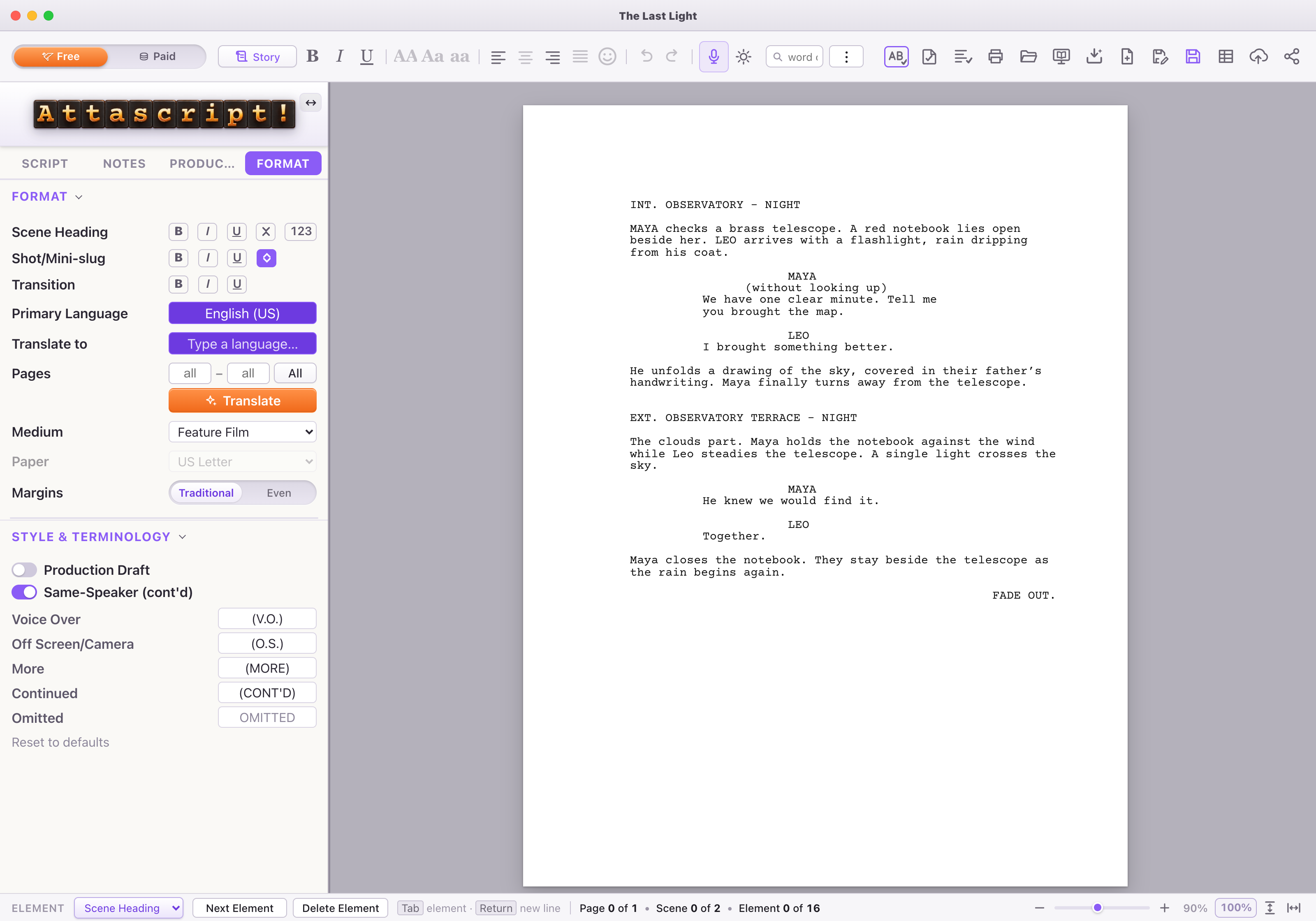
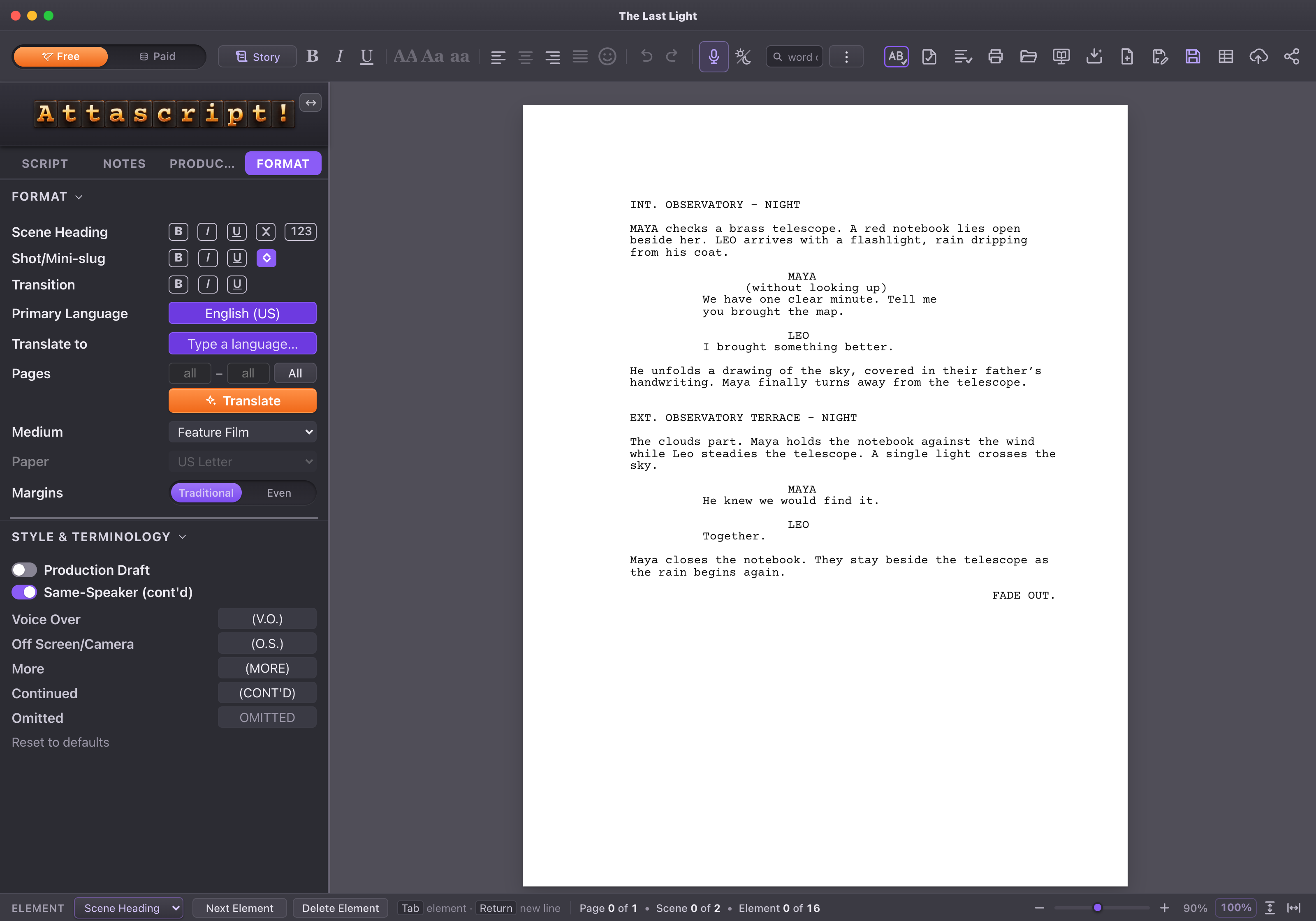
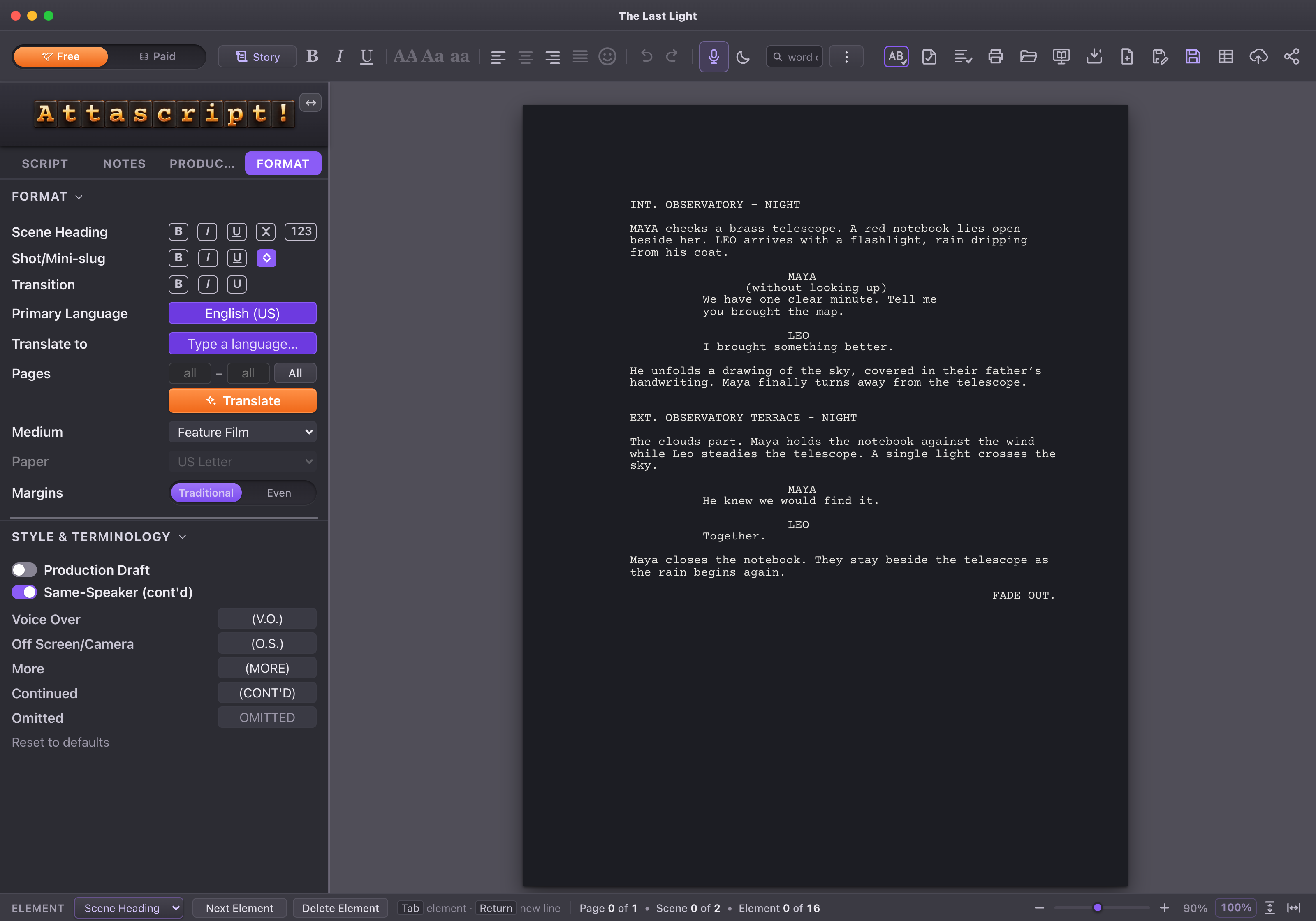
Day, Dusk / Mixed, and Night
The appearance button cycles through three modes. The app labels the middle setting Mixed Mode: dark surroundings with a light page. It is the dusk-like option. Its tooltip names the current mode.
Room for the controls you need
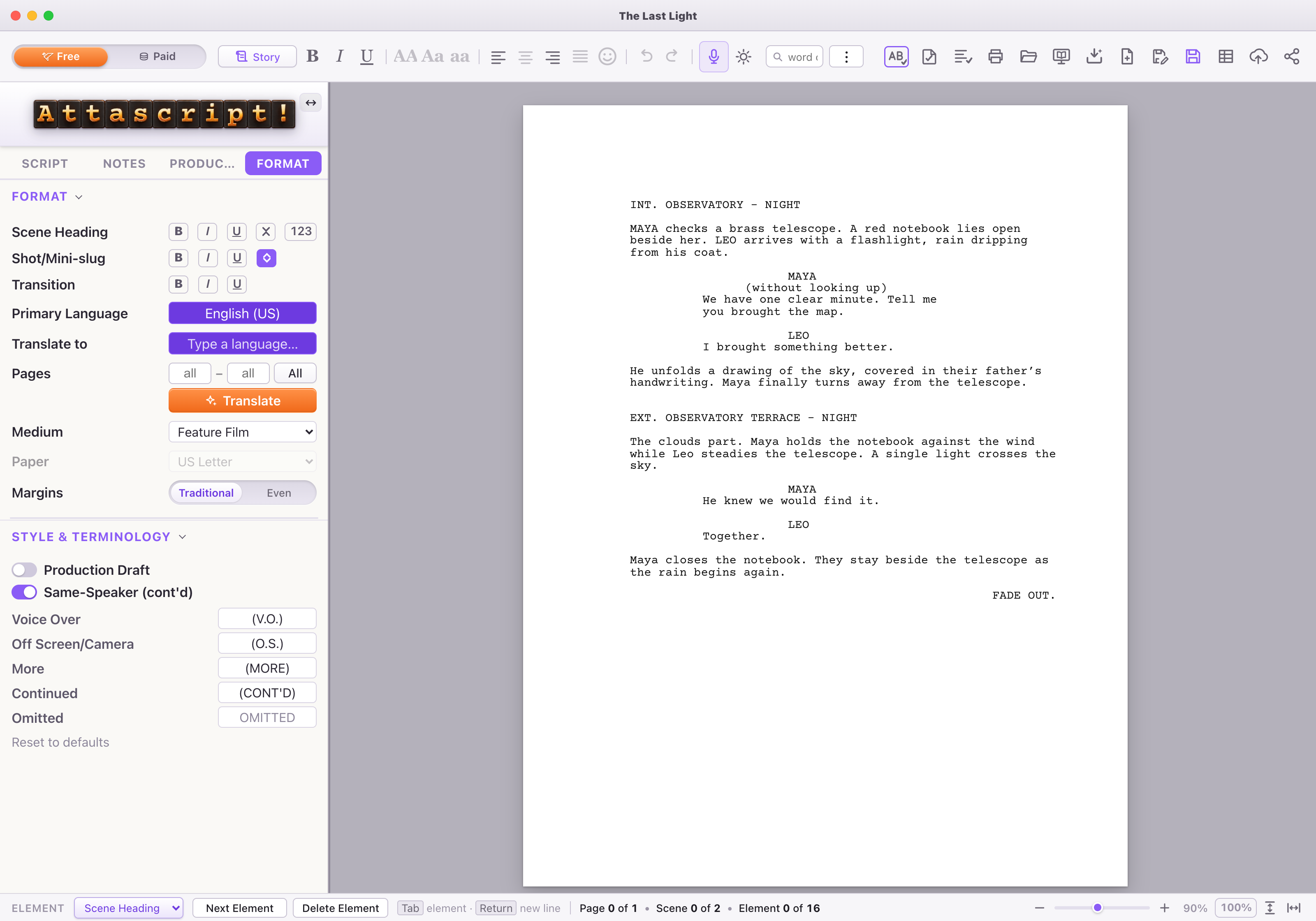
In the Format tab, all Format controls remain visible. Drag the seam above Style & Terminology to resize the lower panel; double-click the seam to reset it. The divider stops before it would hide the Format controls. Panel headings collapse and reopen their sections.
Fit the page to your screen
The bottom zoom controls change the document view. Use Command/Ctrl + 0 for actual size, + 1 for Fit to Length and + 2 for Fit to Width. They do not add a separate app-interface zoom setting.
If every Windows control is unusually small, check Windows display scaling. That is separate from screenplay page zoom.
Find a word—or a tool
Command/Ctrl + F opens Find. Use its options to narrow text searching, and use the toolbar’s word-or-tool search to locate an unfamiliar command. Command/Ctrl + J opens the jump palette. A descriptive tooltip is often the quickest way to identify a toolbar icon.