


THE WRITER’S GUIDE · 07 / 14
Exploring the Story Pages
Build a logline, synopsis, analysis and practical story reports from the same draft.
In this chapter
See the same story from seven angles
Click Story in the toolbar. The row offers Logline, Synopsis, Analysis, Cast, Locations, Outline and Beat Sheet. Use the close button or Escape to return to your screenplay. Left/right arrows navigate when you are not typing in a text field.
Synopsis, Analysis and Beat Sheet unlock at 1,000 words or the equivalent character count for the writing profile. Logline, Cast, Locations and Outline are available for shorter scripts. The examples of the longer tools below use an extended practice draft.
Some views start from facts already in your script. Others need a deliberate Write, Build or Cast request. Opening a page is not the same as asking Gemini to generate it.
Logline: the dramatic promise
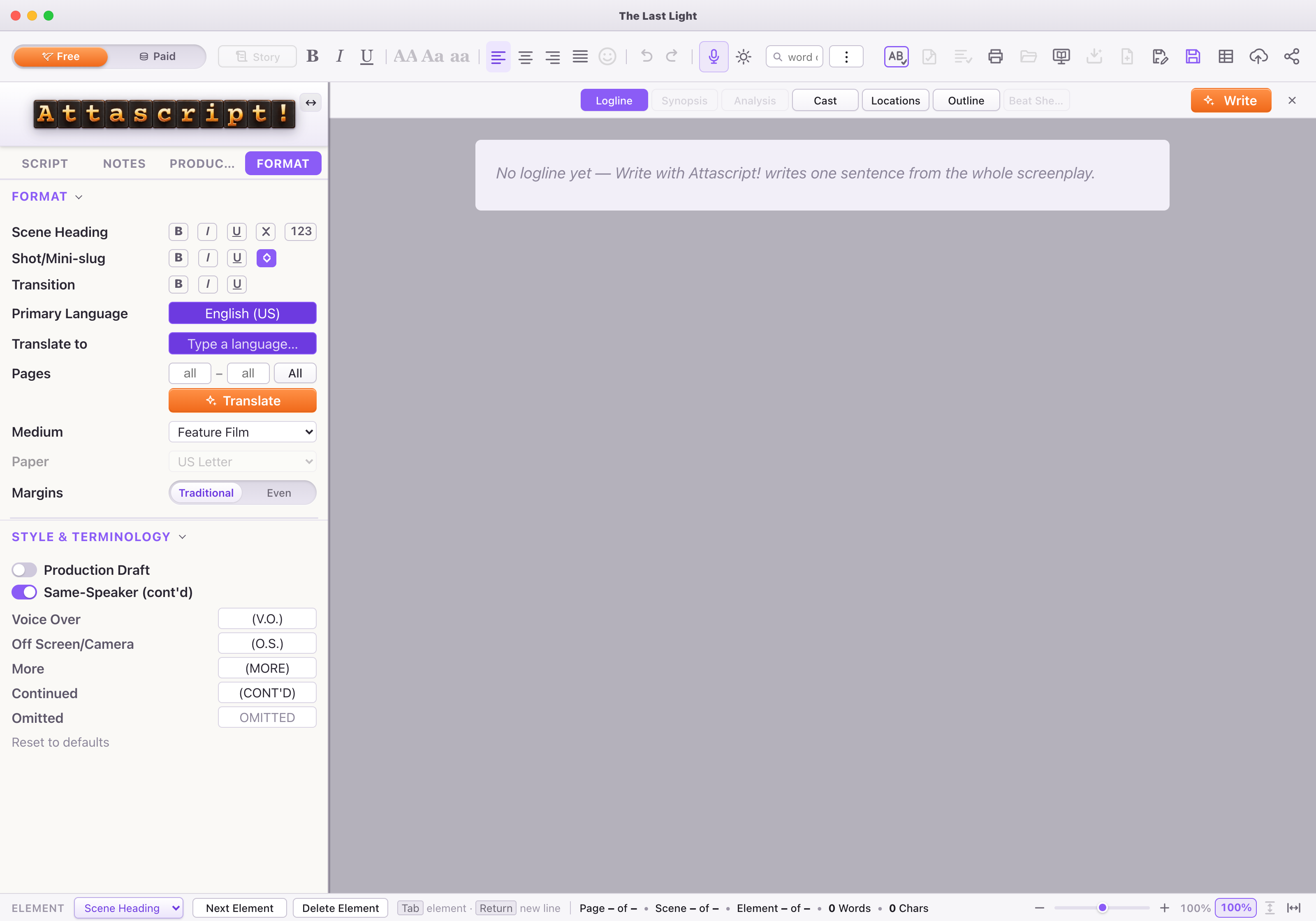
Open Logline and choose Write. Read the sentence for a protagonist, goal and obstacle. You can edit the text directly or use Rewrite with a note.
As a storm closes in, an estranged brother and sister have one clear minute to follow their father’s final map of the stars.
Synopsis: choose the length first
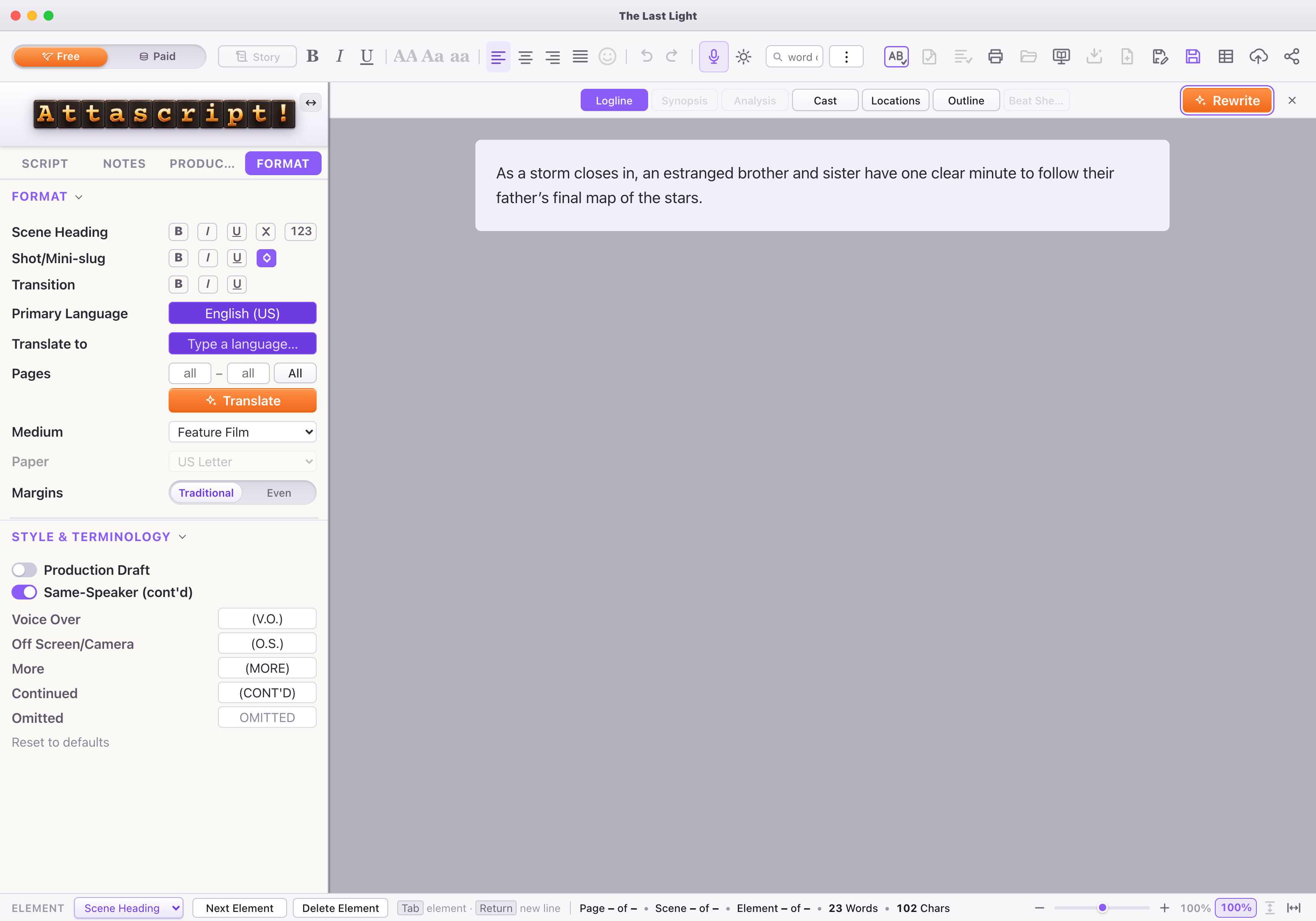
Open Synopsis and adjust the word-count slider beneath the Write / Rewrite button. Its available lengths depend on the script: numeric targets start at 100 and increase in steps of 50, up to roughly a tenth of the source. The bottom stop is Logline. For a short draft, use the separate Logline page until the longer Story tools unlock.
Our slider screenshot uses an extended practice draft so a 100-word target is available. Choose the target, then Write or Rewrite. Moving the slider alone does not rewrite existing text.
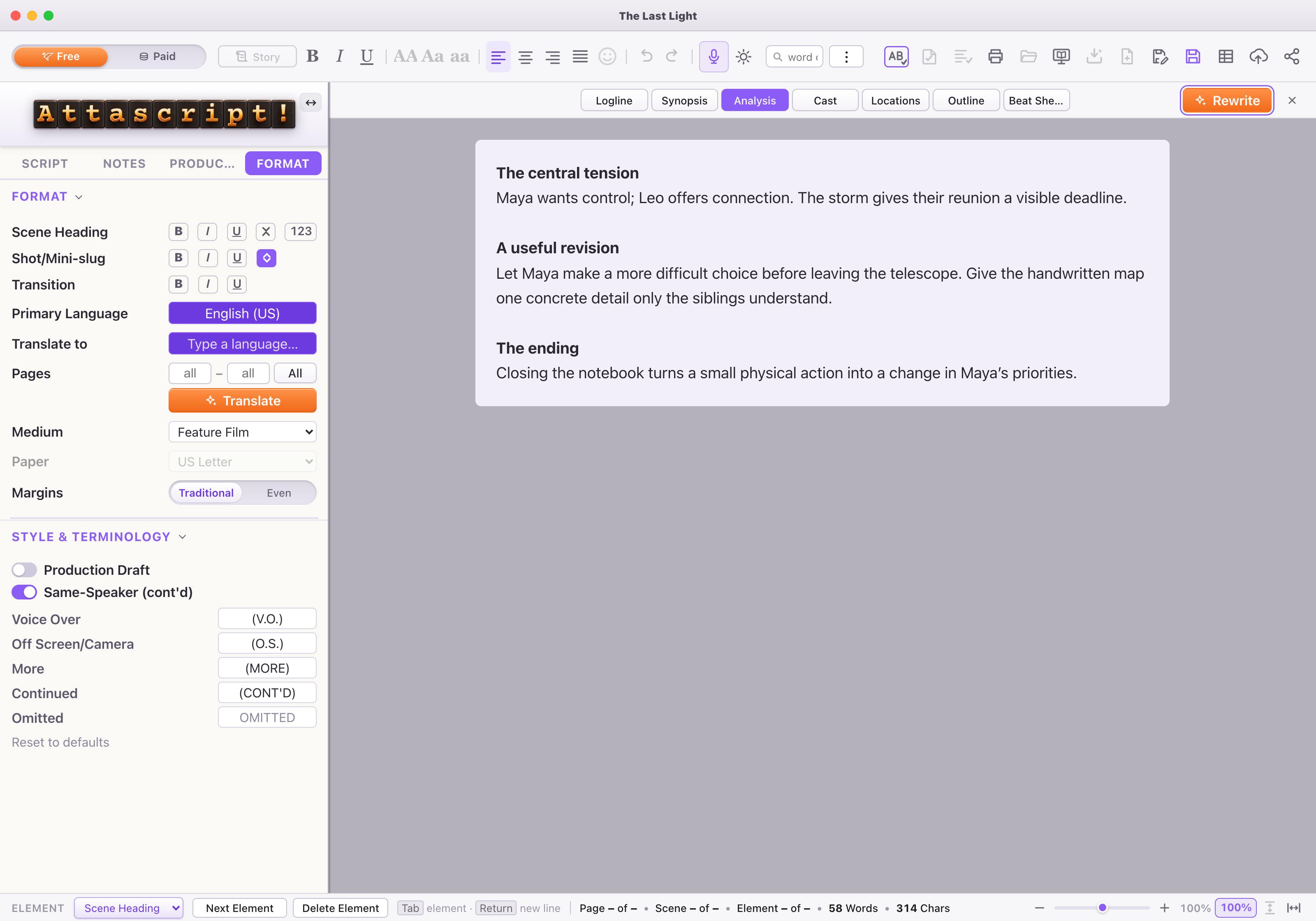
Analysis: find the next revision
Choose Analysis → Write to ask for a reading of the screenplay. Turn a useful observation into a concrete task: for example, make Maya choose between protecting the telescope and trusting Leo. You can edit the analysis and use Rewrite to change its focus.
Cast: characters, descriptions and performers
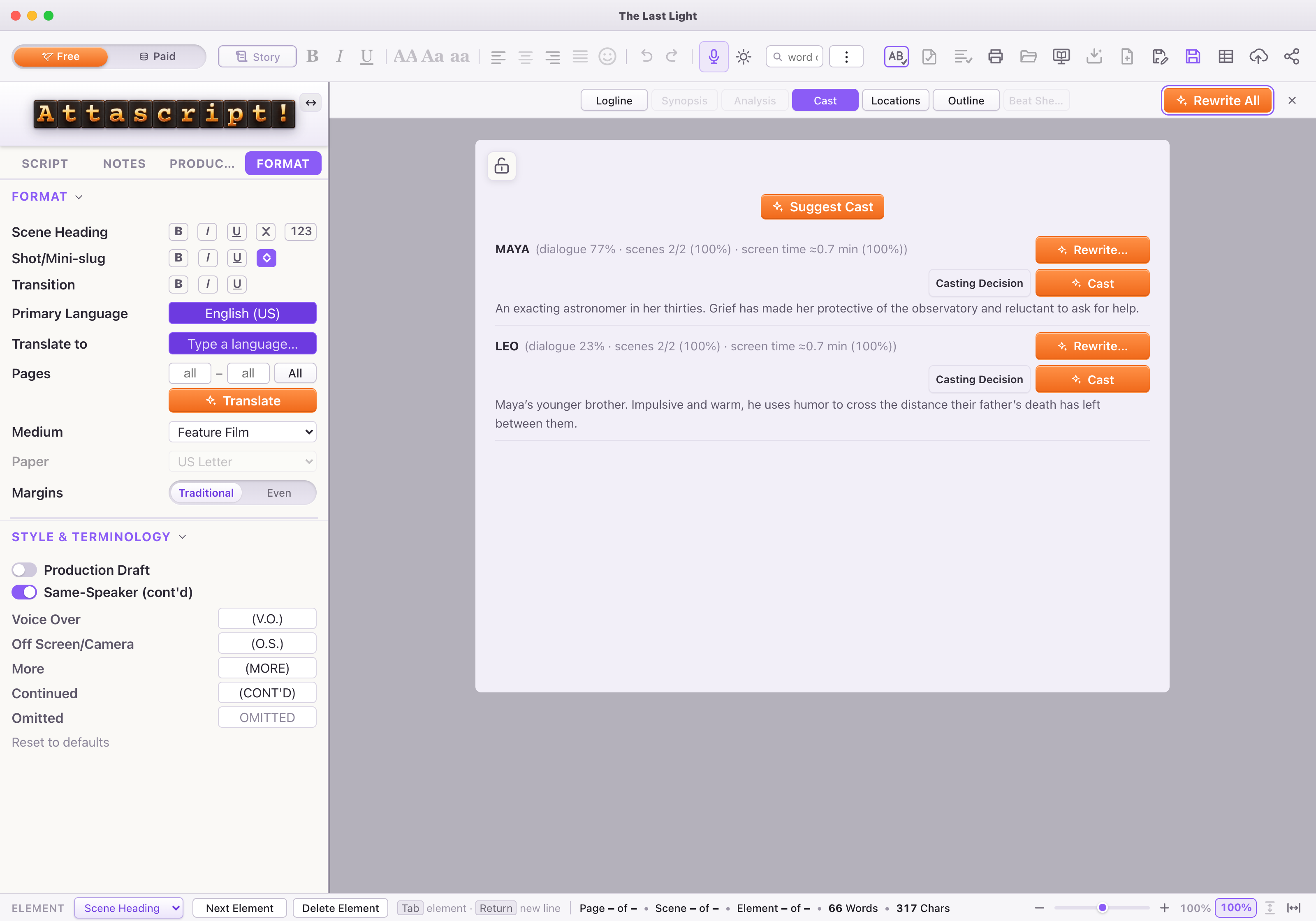
The Cast page draws its character list and statistics from the script. Use the character’s Write button for a description, or type your own. Cast researches a performer; Casting Decision records your own choice. These are separate from writing the character description.
For Maya, a useful description is: An exacting astronomer whose need for control conceals grief.
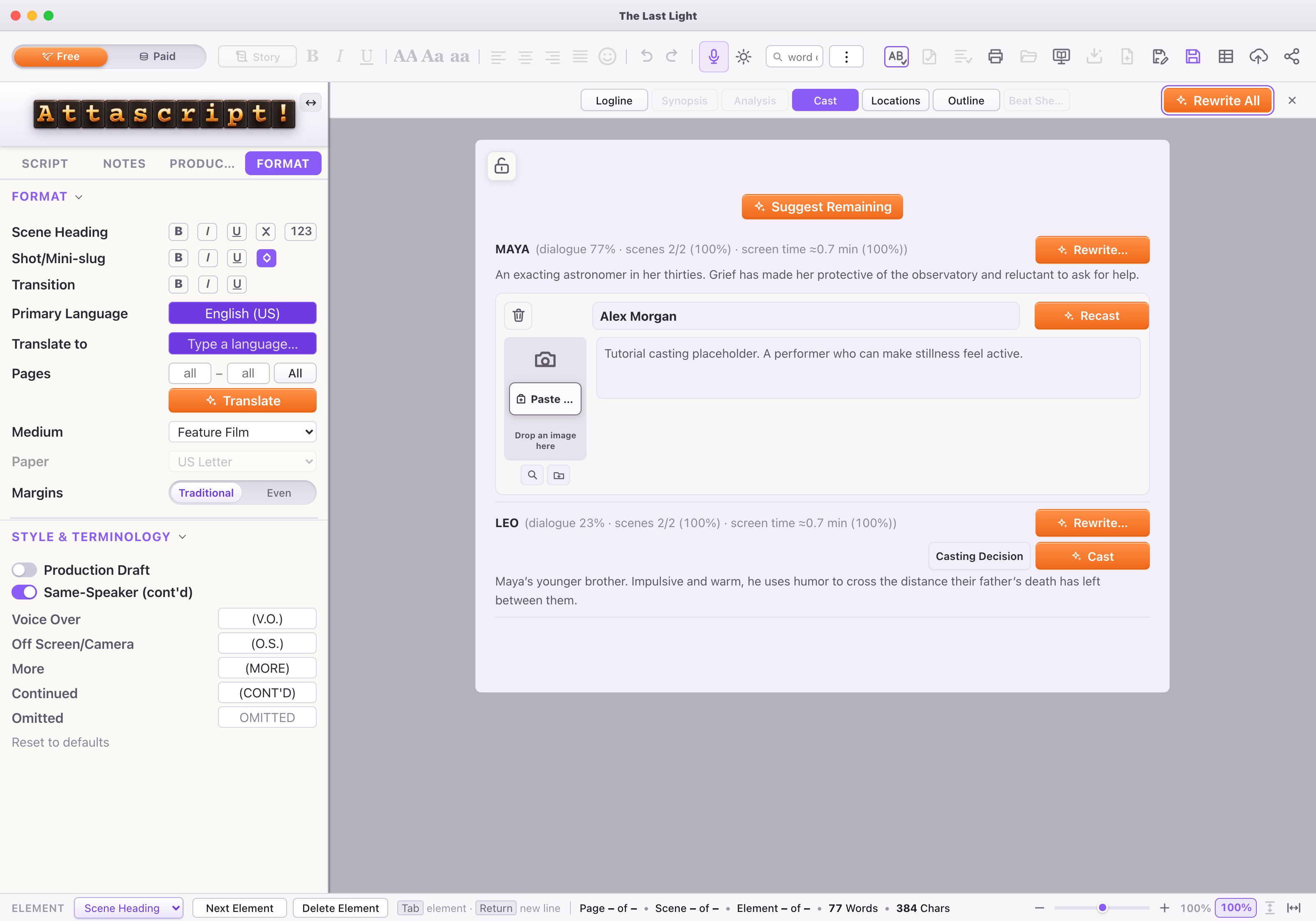
Once a performer name is present, the portrait area offers image actions. Choose or paste a reference image; use material you have permission to include. Online portrait lookup and AI image creation are different operations.
Locations: the places you need to make
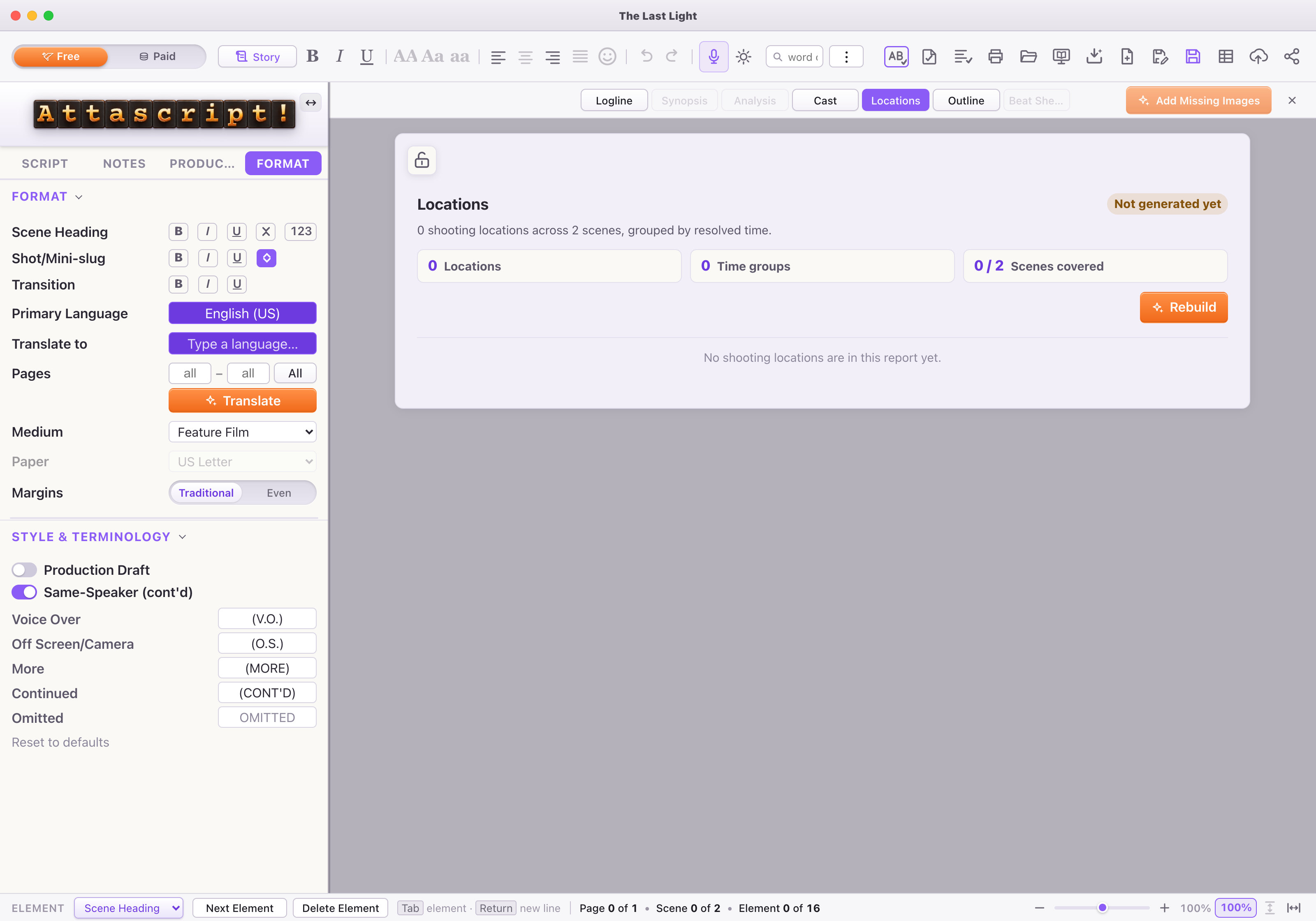
Open Locations and choose Build Locations to analyze the screenplay. A generated report groups places, aliases, scene references and time or visual variants. Review the result before relying on it for planning.
For the observatory, check that the interior and terrace are represented sensibly. Edit the visual setup and production note. The image area lets you choose or paste a reference. Paid-tier image generation can create a visual suggestion from the location description; it requires the appropriate billed-project key.
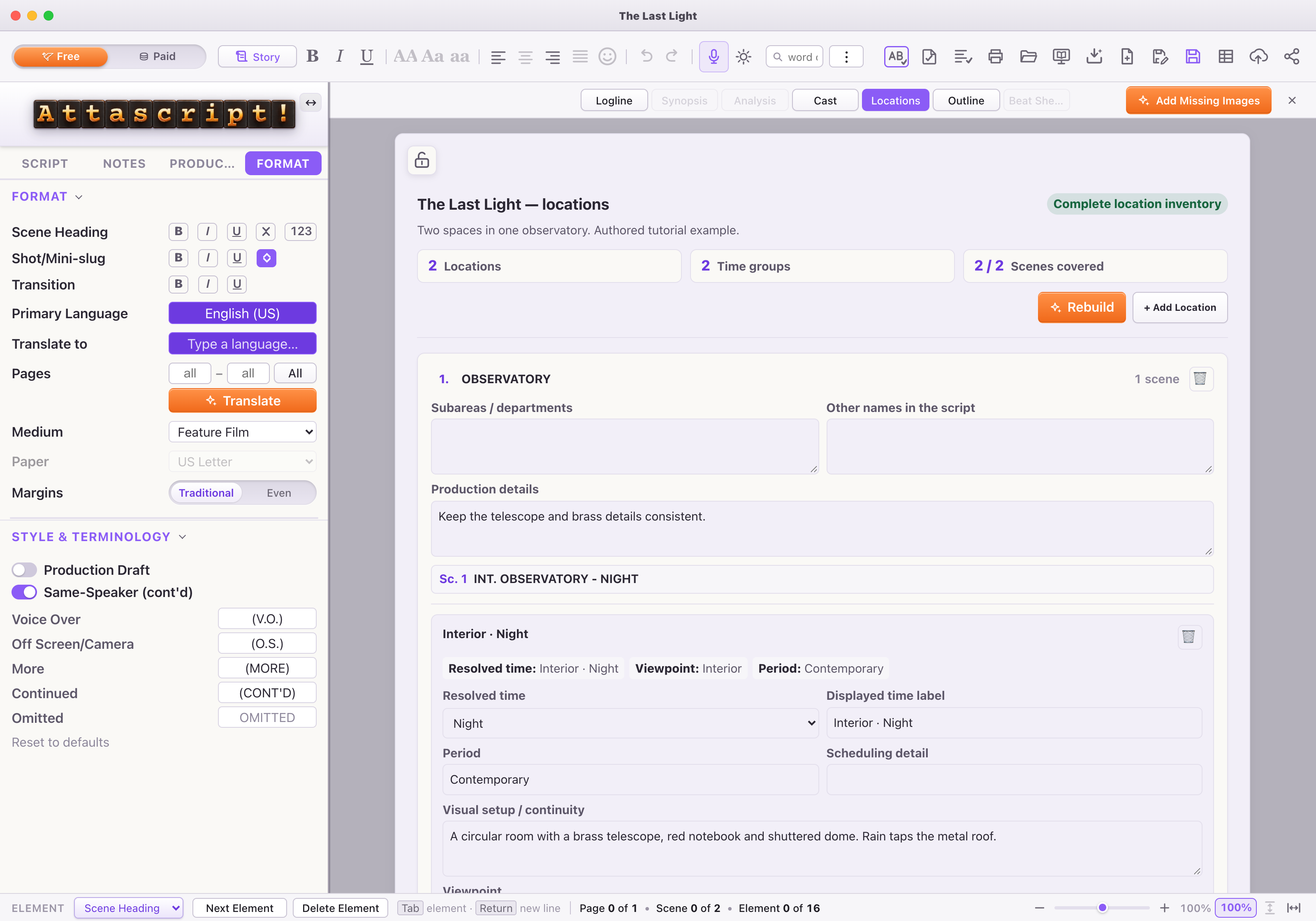
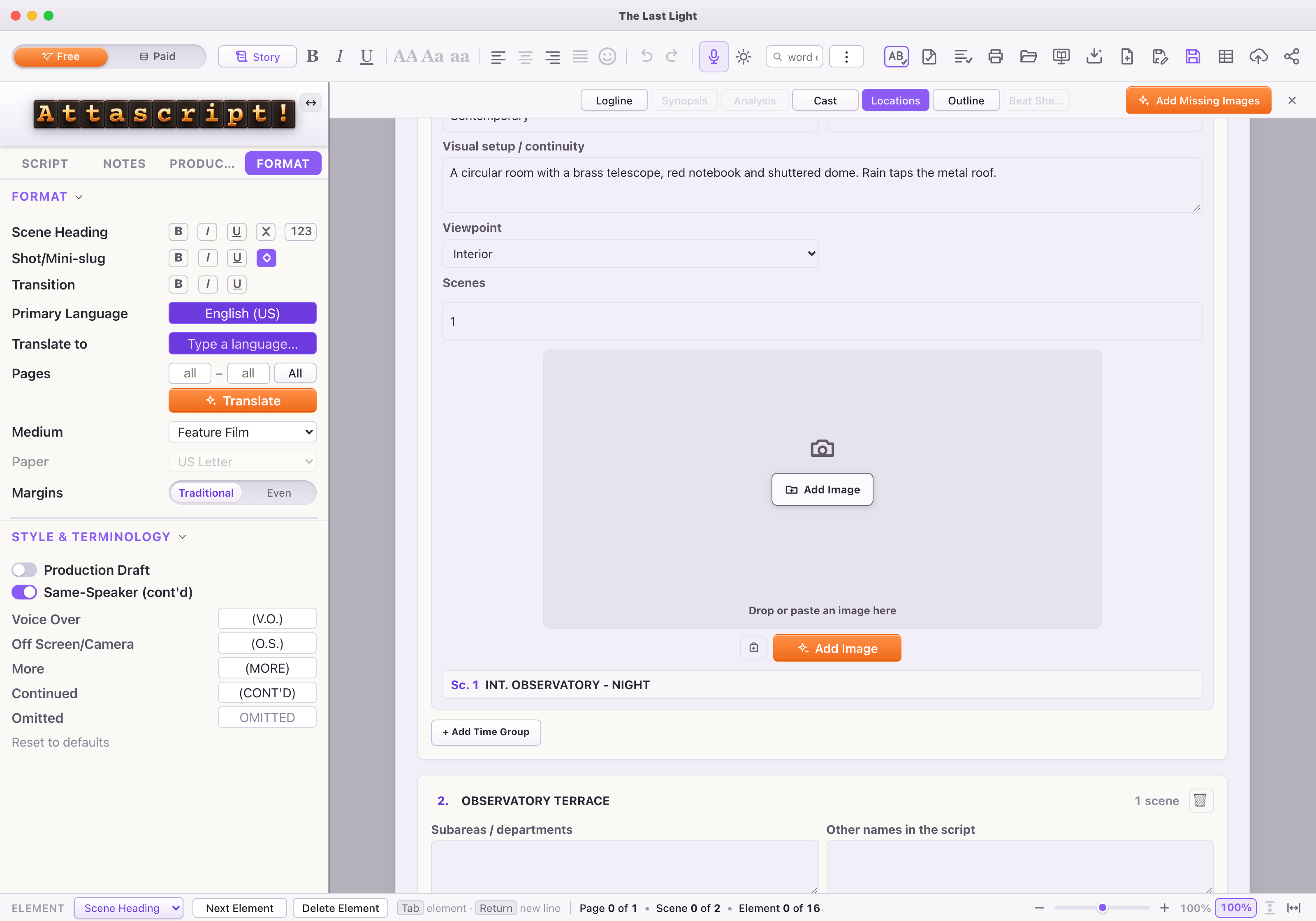
After significant script changes, use Rebuild deliberately and read the replacement warning: a completed replacement can replace manual edits in the current Locations sheet.
Outline: one clear description per scene
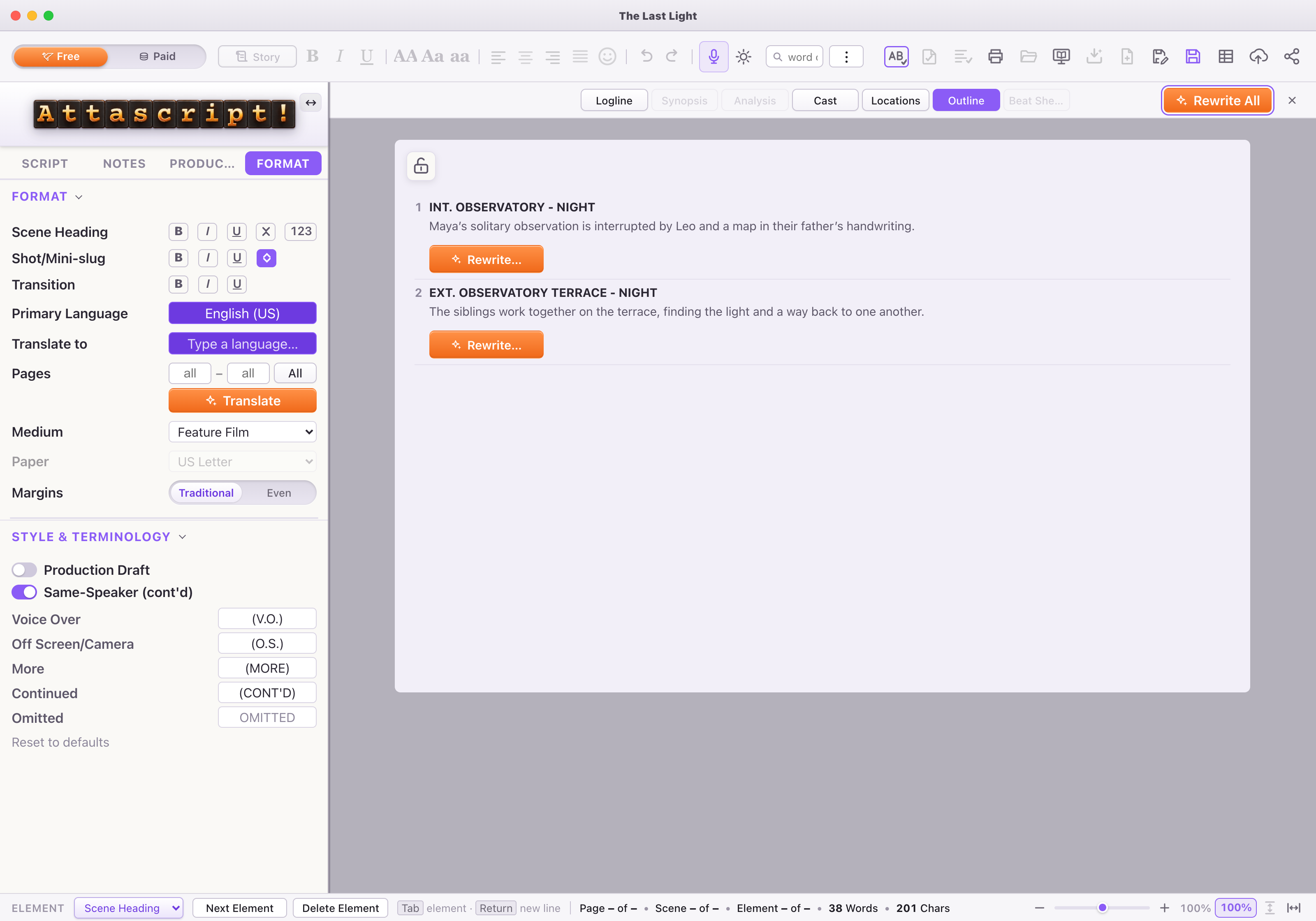
The Outline already knows the scene headings. Use Write to generate descriptions or write them yourself. Click a scene heading to go back to that scene. For our first scene: Leo interrupts Maya’s solitary observation with their father’s map.
Beat Sheet: what changes, and where
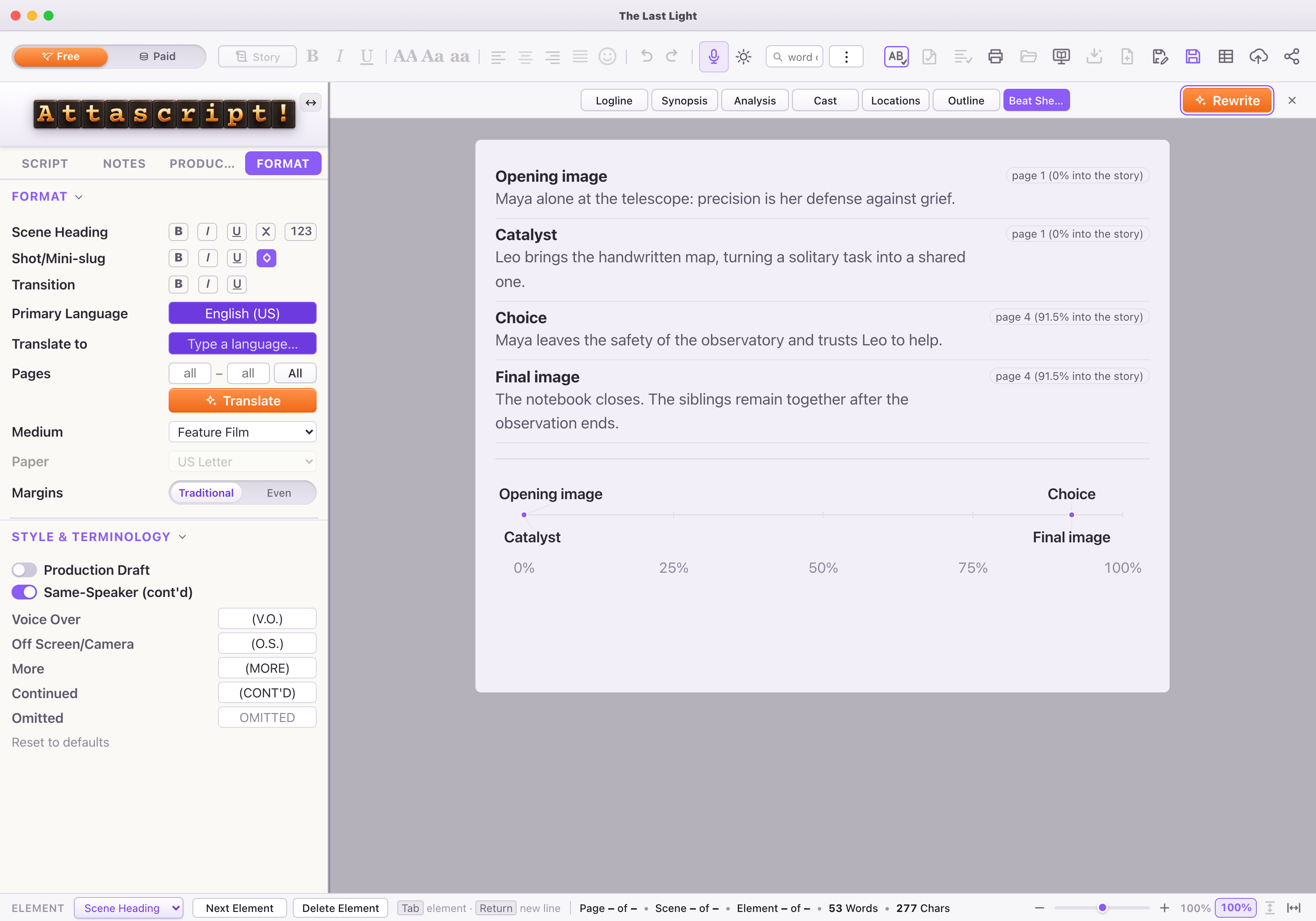
Choose Beat Sheet → Write to identify the dramatic turns. Review the beat names and summaries, and follow page/position references where available. Edit a beat when the emphasis is wrong. A missing or absent beat deserves a decision; it is not an instruction to invent a scene automatically.
Keep, revise and share
Where draft arrows are available, use them to review earlier Story generations. Save the Attascript! project to keep the working material. From Story, Save As or Print asks which Story elements to include, so check the selected sections before exporting.