


THE WRITER’S GUIDE · 02 / 14
Writing & the Tab Key
Keep your attention on the scene. Let each element do its formatting.
In this chapter
Write your first exchange
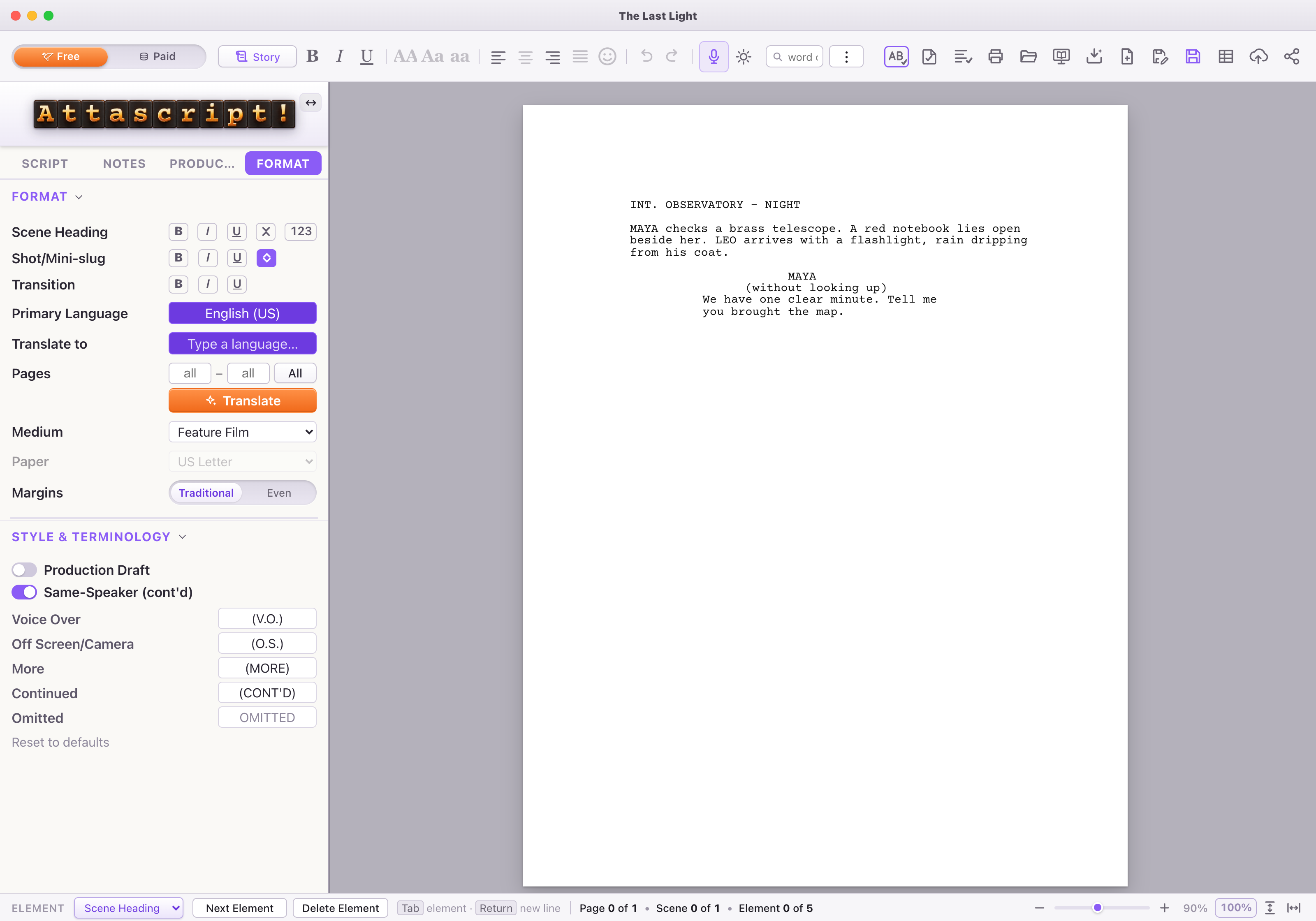
A screenplay is made of elements: headings, action, character names and dialogue. Each element has its own spacing and position. Avoid using spaces to push dialogue into the middle of the page.
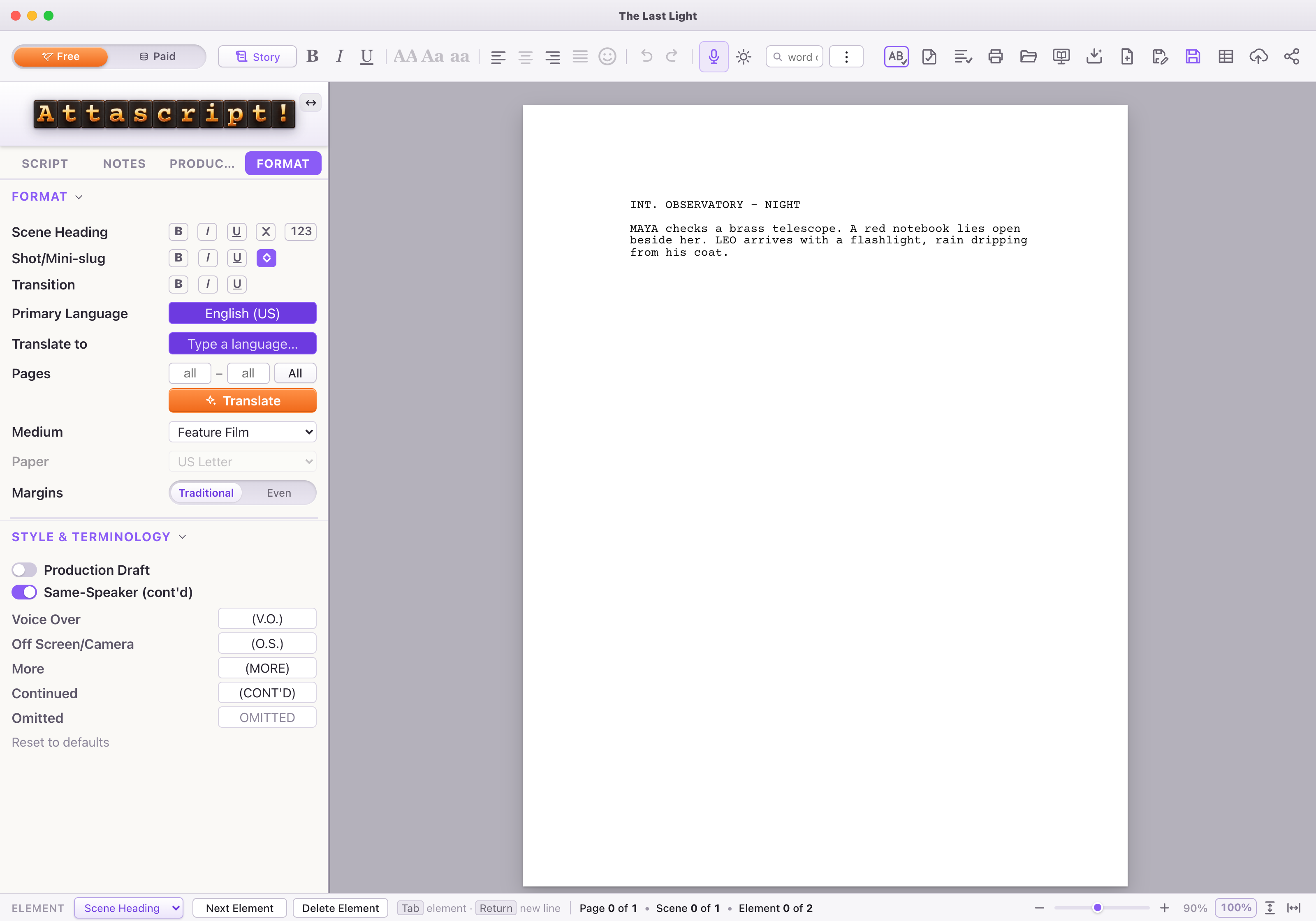
- After your heading, press Tab and type:
MAYA checks a brass telescope. A red notebook lies open beside her.
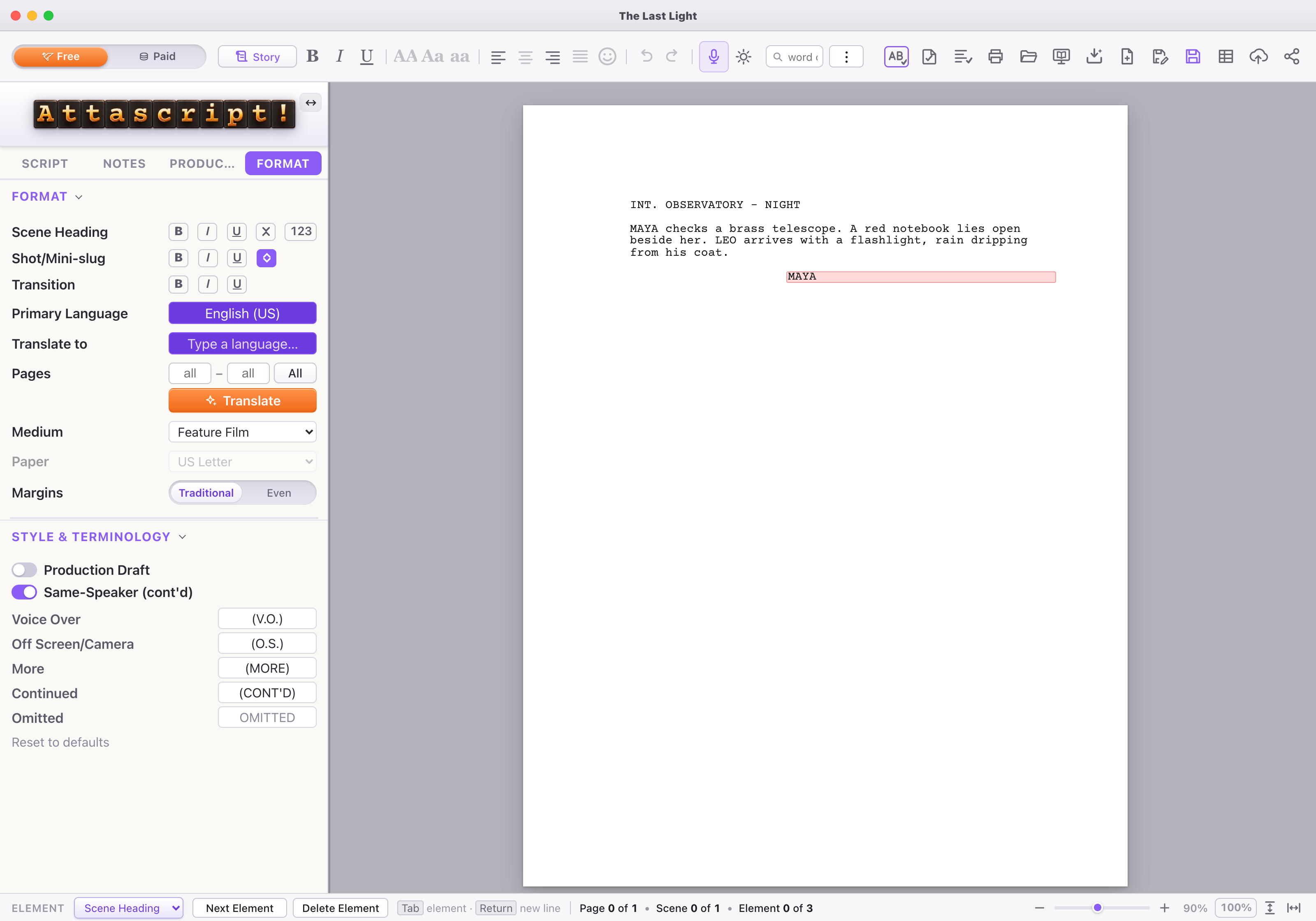
You are writing Action. - Press Tab after that text. Type
MAYA
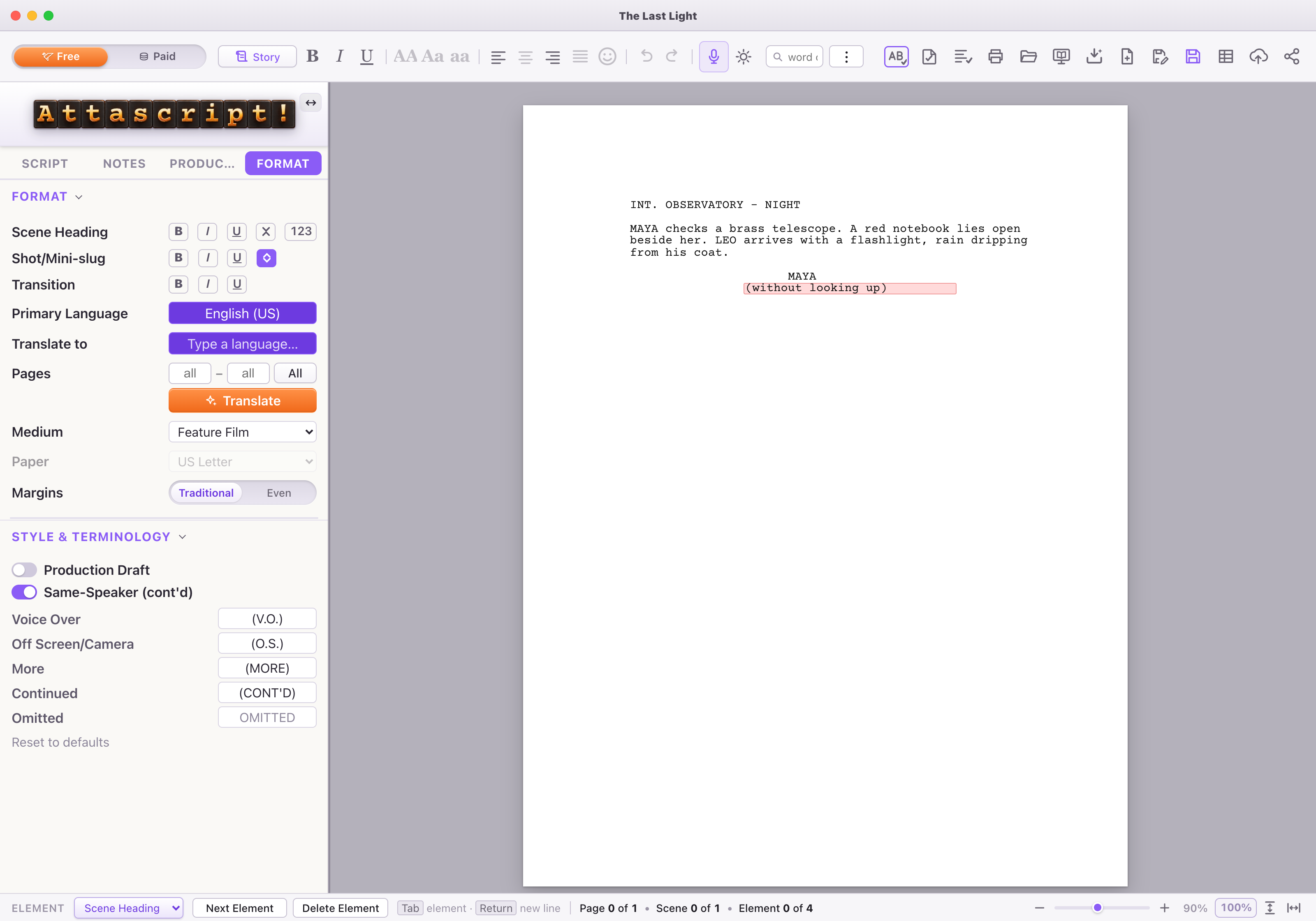
in the Character element. - Press Tab again. The app opens a Parenthetical with brackets. Type
without looking up
inside them. If you do not need a parenthetical, use Return after the character name to go directly to Dialogue. - Press Tab after the parenthetical and type:
We have one clear minute. Tell me you brought the map.
- Use Return at the end of the speech to make an Action line. On that empty line, use Tab to choose Character when you want Leo to answer.
Where Tab takes you
This table applies when the current element contains text, outside a suggestion menu or a two-column passage. Tab inserts the next element; it does not insert a tab character into your screenplay.
| Current element with text | Tab creates | Use it for |
|---|---|---|
| Scene Heading | Action | Describe what we see. |
| Action | Character | Name the next speaker. |
| Character | Parenthetical | Add a short delivery cue, or use Return for Dialogue. |
| Parenthetical | Dialogue | Write the spoken line. |
| Dialogue | Parenthetical | Add a delivery cue within the speech; use Return for Action. |
| Transition | Scene Heading | Begin the next scene. |
| Shot / Mini-slug | Action | Describe the shot. |
| New Act | Scene Heading | Begin the act’s scene. |
| End of Act | New Act | Continue with the act assistant in TV / multicamera. |
| Teaser/Act One | Scene Heading | Begin the scene after the act marker. |
An empty line behaves differently
On an empty element, Tab changes the type of that same line. The choices depend on the element above it. Shift + Tab cycles backward on an empty line. An untouched pair of parenthesis brackets counts as empty.
| Element above the empty line | What the Tab cycle offers |
|---|---|
| Scene Heading | Scene Heading, Action, Character and Shot; the current type is retained in the cycle. |
| Character | Parenthetical and Dialogue. |
| Parenthetical | Dialogue, plus the current type if different. |
| Action, Shot or Transition | Ordinary non-speech elements; it skips bare Dialogue and Parenthetical. |
| Dialogue | Other ordinary elements, retaining the current type. |
| End of Act in TV / multicamera | The act assistant. |
| No preceding element | The ordinary element types. |
Acts, Split Screen and Dual Dialogue are special choices in the element menu. Inside a two-column passage, Tab follows that passage’s own column sequence. When an autocomplete list is open, Tab or Return accepts its highlighted suggestion first.
Return and the Element menu
At the end of Character or Parenthetical, Return creates Dialogue. After a Transition, it creates a Scene Heading. After most other elements, it creates Action. Inside existing text, Return can split the line at the caret.
If you land on a type you did not intend, use the Element selector in the bottom bar. It is also a useful way to learn the available types. The Next Element and Delete Element buttons sit beside it.