
THE WRITER’S GUIDE · 13 / 14
Connect Your Gemini Key
Start with Free. Add Paid whenever you want—without giving up your Free fallback.
In this chapter
Choose the setup that suits you
You can write, save and use local spelling without a Gemini key. When you want the AI tools, connect your own key from Google AI Studio. It is separate from the Gemini chat app.
Watch the 30-second walkthrough
Spoken instructions and English captions. Watch “Get a key” lead to Google AI Studio, find “Create API key”, then watch a close-up of the pill switch moving between orange Free and teal Paid. Pause whenever you need; account setup takes longer than the overview.
Option 1 · Free only
This is all you need if you do not want paid AI. You can leave the Paid key slot empty.
Regional availability: Google requires Paid Services for apps offered to users in the EEA, UK and Switzerland. See its regional terms.
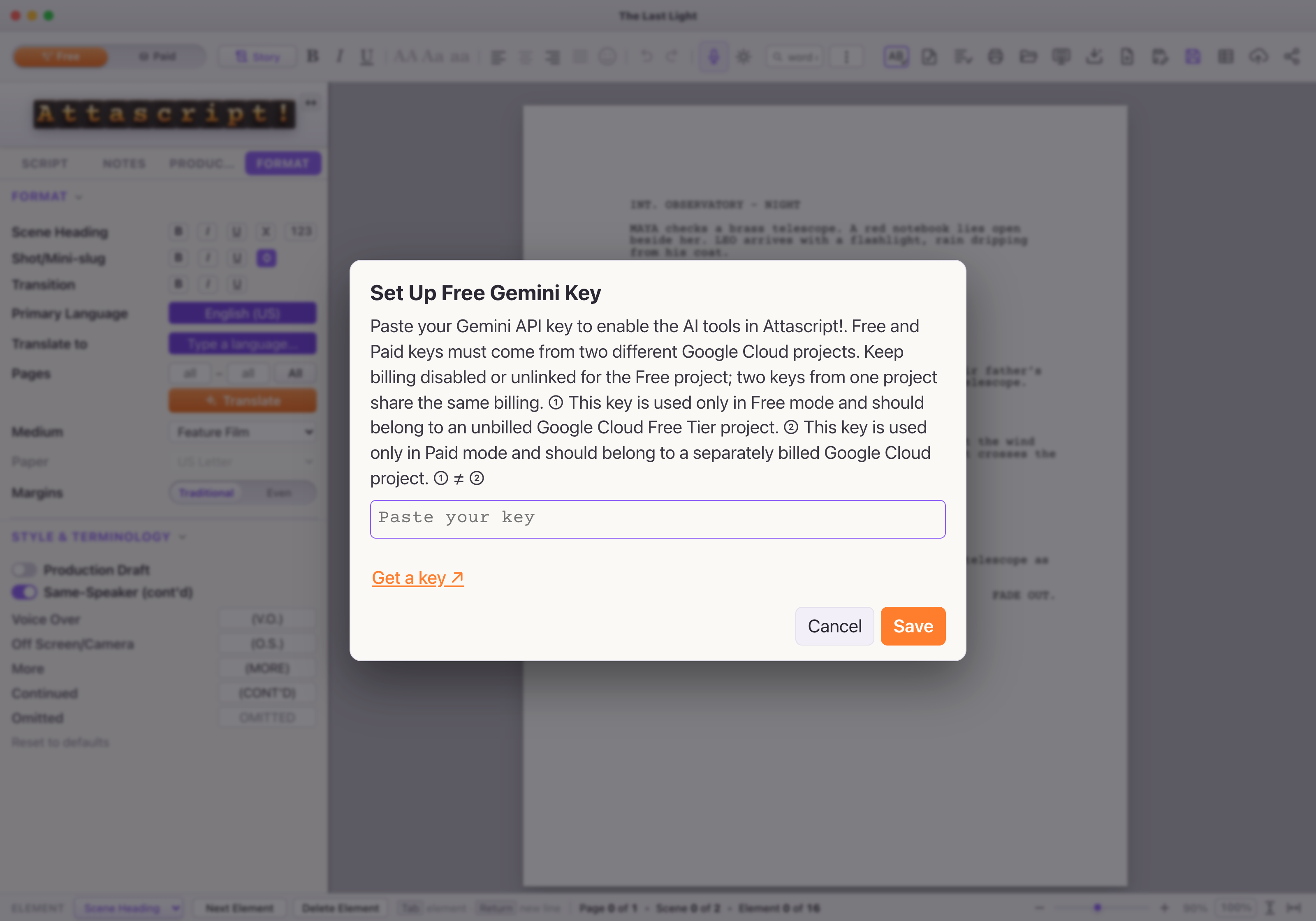
- Open the Free-key dialog. On Welcome, choose Set Up Free Gemini Key. While writing, select Free, then use Attascript! → Gemini API Key… on Mac or Help → Gemini API Key… on Windows.
- Click Get a key ↗. It opens Google AI Studio’s API Keys page in your browser. Sign in to your Google account and review any first-visit terms.
- Find or create your Free key. A new AI Studio account may already have a default project and key. Otherwise use Create API key at the top right and choose an unbilled project. Keep that project’s billing disabled or unlinked. You do not need to set up billing for this option.
- Copy, paste and save. Copy the key in AI Studio, return to the app and paste it into the Free dialog. Choose Save. The app checks the key before storing it; follow any message it displays.
- Try a small request. Open Ask The 🐵 and ask for three possible scene titles. Free mode uses orange AI buttons. You are ready to write.

If Google’s labels differ, follow its official API-key instructions.
Option 2 · Add Paid, keep Free
Complete the Free setup above first. Then make a different Google Cloud project for Paid. Two keys inside one project share its billing and quota; they do not give you an independent Free fallback.
- Create a new project for Paid. Open Google Cloud’s Manage resources page and choose Create project. Give it a recognizable name, such as Attascript! Paid. Choose the appropriate organization, or No organization if offered, then create the project. Your Free and Paid projects can use the same Google account.
- Bring the new project into AI Studio. Open AI Studio → Projects. If the new project is missing, choose Import projects, select it and import it.
- Create its separate key. Return to API Keys → Create API key and select the new Paid project. Check the project name and ID before copying its key.
- Enable billing only for the Paid project. Use Set up billing beside that project in AI Studio and follow Google’s billing and payment prompts. Leave your original Free project unlinked from billing. Google may require prepaid credit; review its current terms and charges.
- Save the Paid key in the Paid slot. Return to Attascript!, choose Paid, open Gemini API Key…, paste the new key and choose Save. Keep the original key in the Free slot. The Paid selector and AI action buttons turn teal.
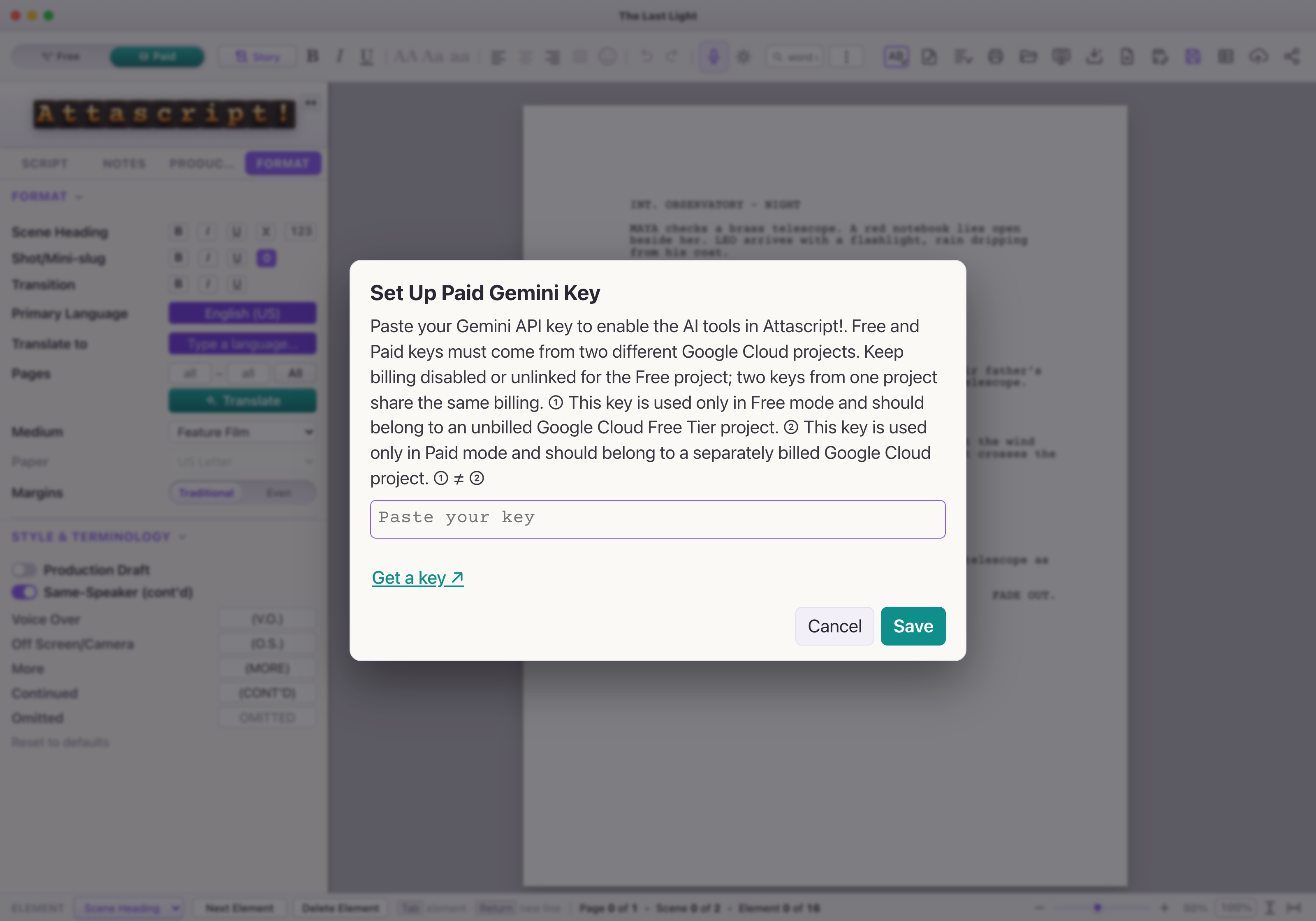
Google’s instructions: create a Cloud project, import a project and create its key, and set up Gemini API billing.
Recognize your mode at a glance
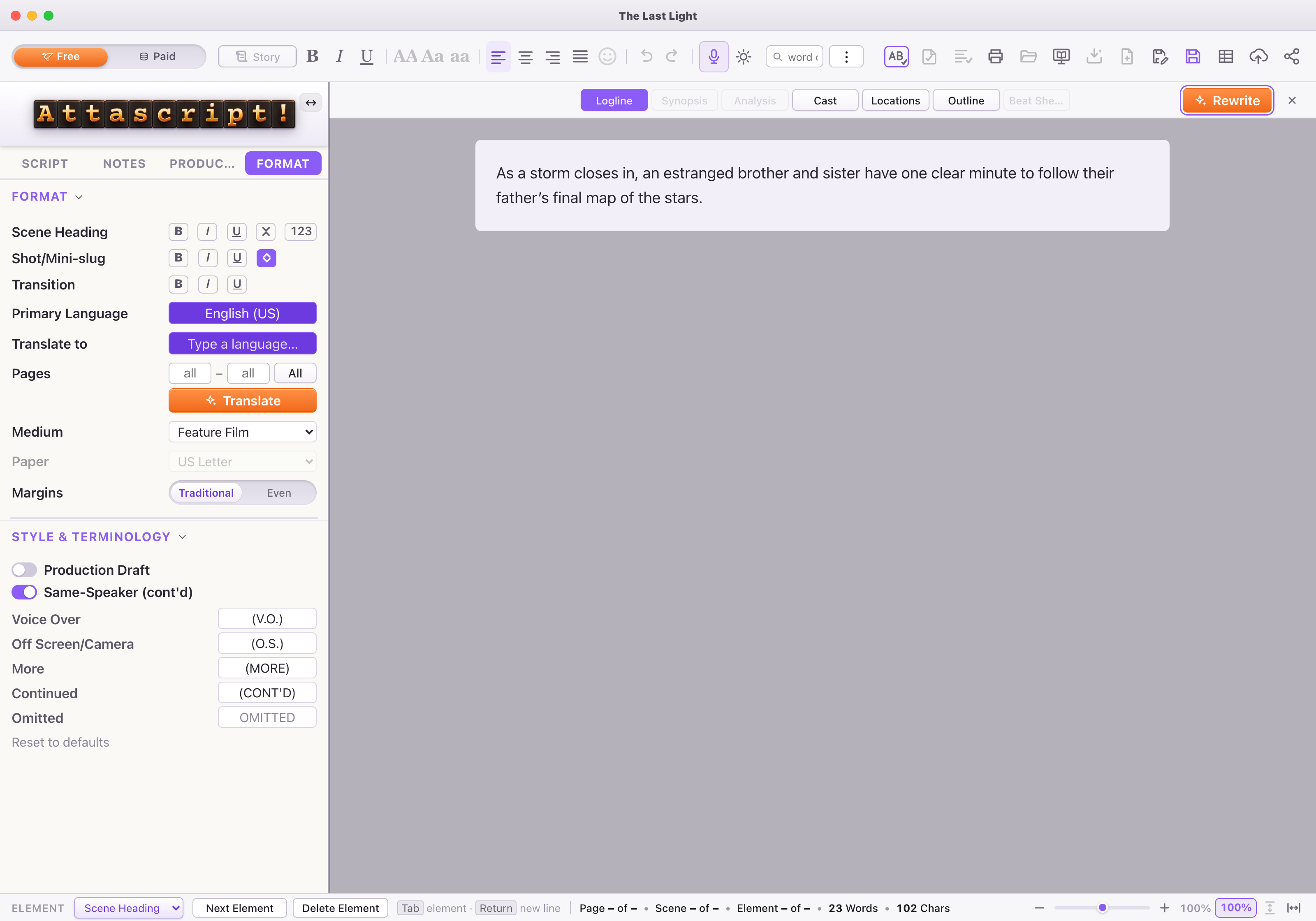
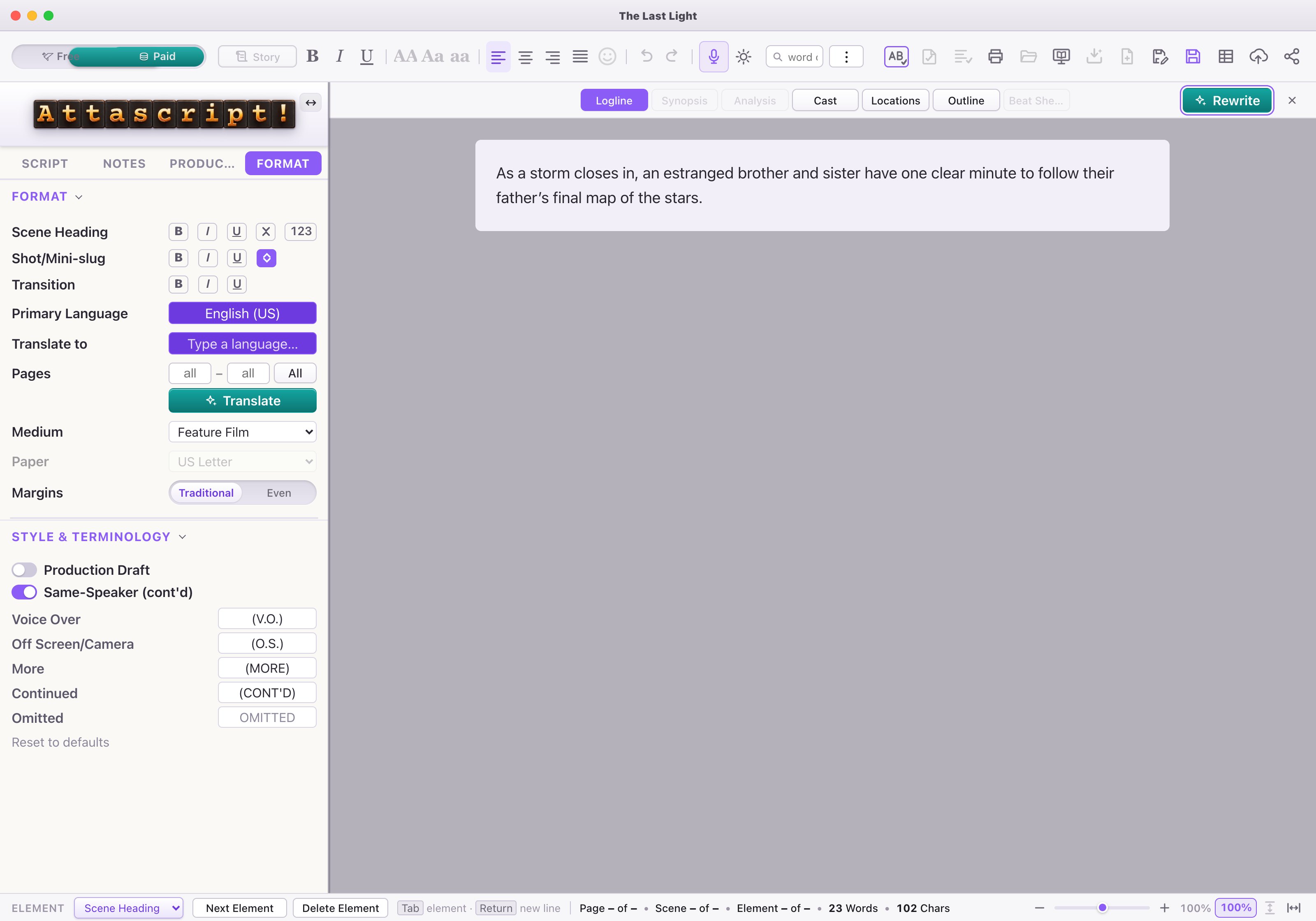
Free is orange. Paid is teal. The selected tier, Translate and Story-page AI actions make the difference easy to see. Both examples below use the same Day appearance; the AI tier is separate from Day, Mixed and Night themes.
Free · the orange side

Paid · the teal side

Free · orange buttons
Paid · teal buttons
Keep your Free fallback independent
Billing stays off
Free project → Free key → Free slot
Billing goes here
Paid project → Paid key → Paid slot
Check that the two keys belong to different project IDs and that the Free project is not linked to a billing account. When prepaid credit reaches zero, Google can stop requests from every project attached to that billing account. Keeping Free unlinked separates it from the Paid balance.
With a saved Free key, Attascript! can switch supported requests to Free when Paid credit runs out. Free still has its own quotas and service availability; Paid-only tools may require Paid access. The independent project protects your fallback from a Paid billing interruption—it does not make Free unlimited. Requests that switch to Free follow that project’s applicable data terms; see the content-use note above.
See Google’s billing and zero-balance explanation and project-level rate limits.
If something does not connect
| What you see | What to try |
|---|---|
| Invalid key or access denied | Copy the entire current key from AI Studio. Check its project, API restrictions and Gemini access. |
| Free / Paid project mismatch | Check the project ID and billing state. Free needs an unbilled project; Paid needs a different billed project. |
| Free quota or rate limit | Wait as directed. A second key in the same project does not create extra project quota. |
| Paid balance warning | Check credit and billing in Google. Confirm your separate Free key is saved and its project remains unlinked from billing. |
| The video is quiet | Use the video’s speaker control and check your device volume. English captions and the transcript are also available. |
Video transcript
Start with Free. Click Get a key to open Google AI Studio, then Create API key. Keep billing off. Paste the key into Attascript!’s Free slot and save. Orange buttons mean Free. Want Paid? Create a separate project and enable billing there. Save its key in the Paid slot; the buttons turn teal. Keep your Free project unbilled, so an empty Paid balance won’t block your fallback. [The app’s save giggle.]